How to Set Up Two-Factor Authentication for Your Organization
Enable 2FA with authenticator apps, generate recovery codes, and reset 2FA for team members as an admin.
Overview
Two-factor authentication (2FA) adds a second layer of security to your Chainsaw account. Even if your password is compromised, an attacker would also need access to your authenticator app. Chainsaw supports TOTP (Time-based One-Time Password) compatible with Google Authenticator, 1Password, Authy, and other authenticator apps.
Prerequisites
- A Chainsaw user account
- A TOTP-compatible authenticator app installed on your phone or device
Step 1: Navigate to Security Settings
Click your profile icon or navigate to Settings → Security.
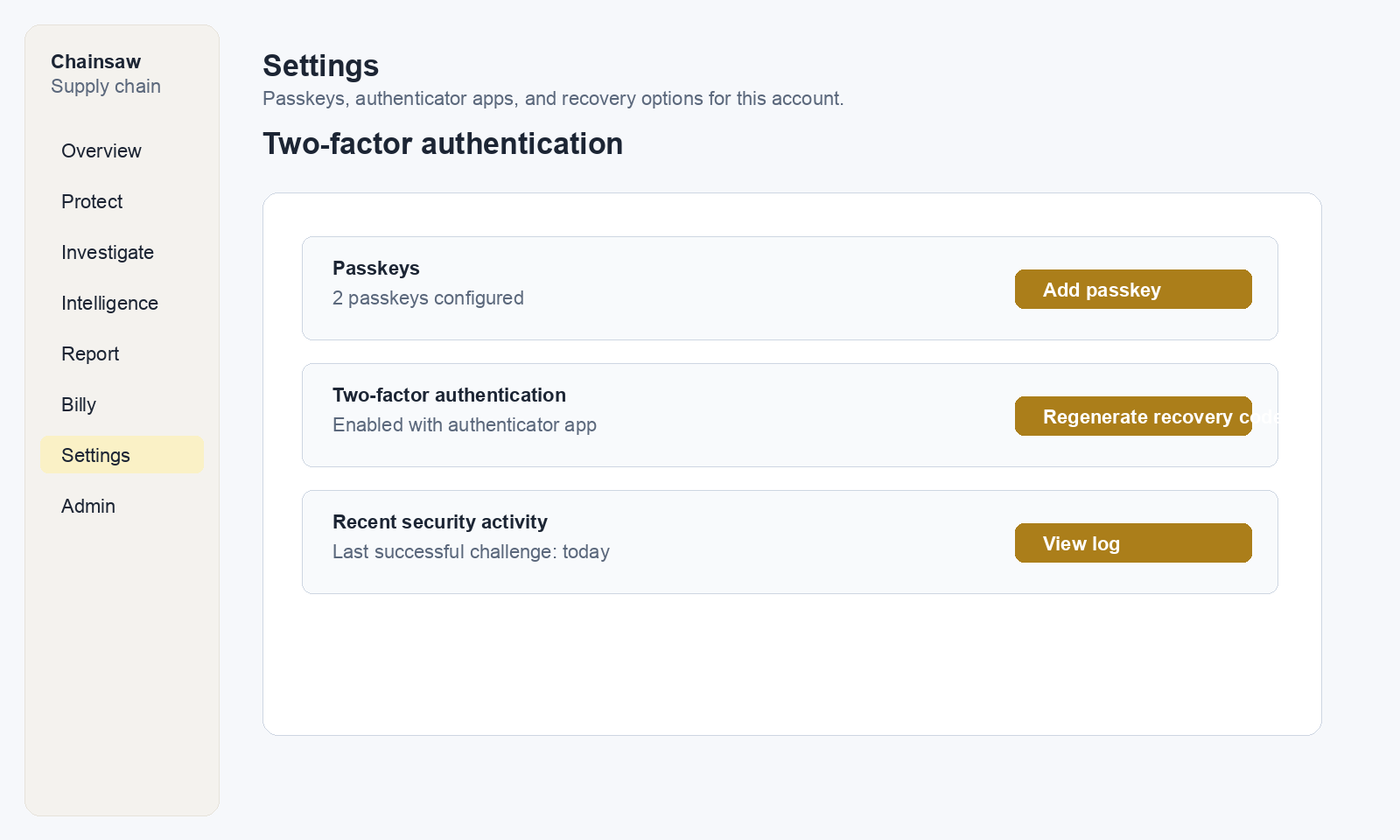
Step 2: Enable Two-Factor Authentication
Click Enable 2FA to begin setup.
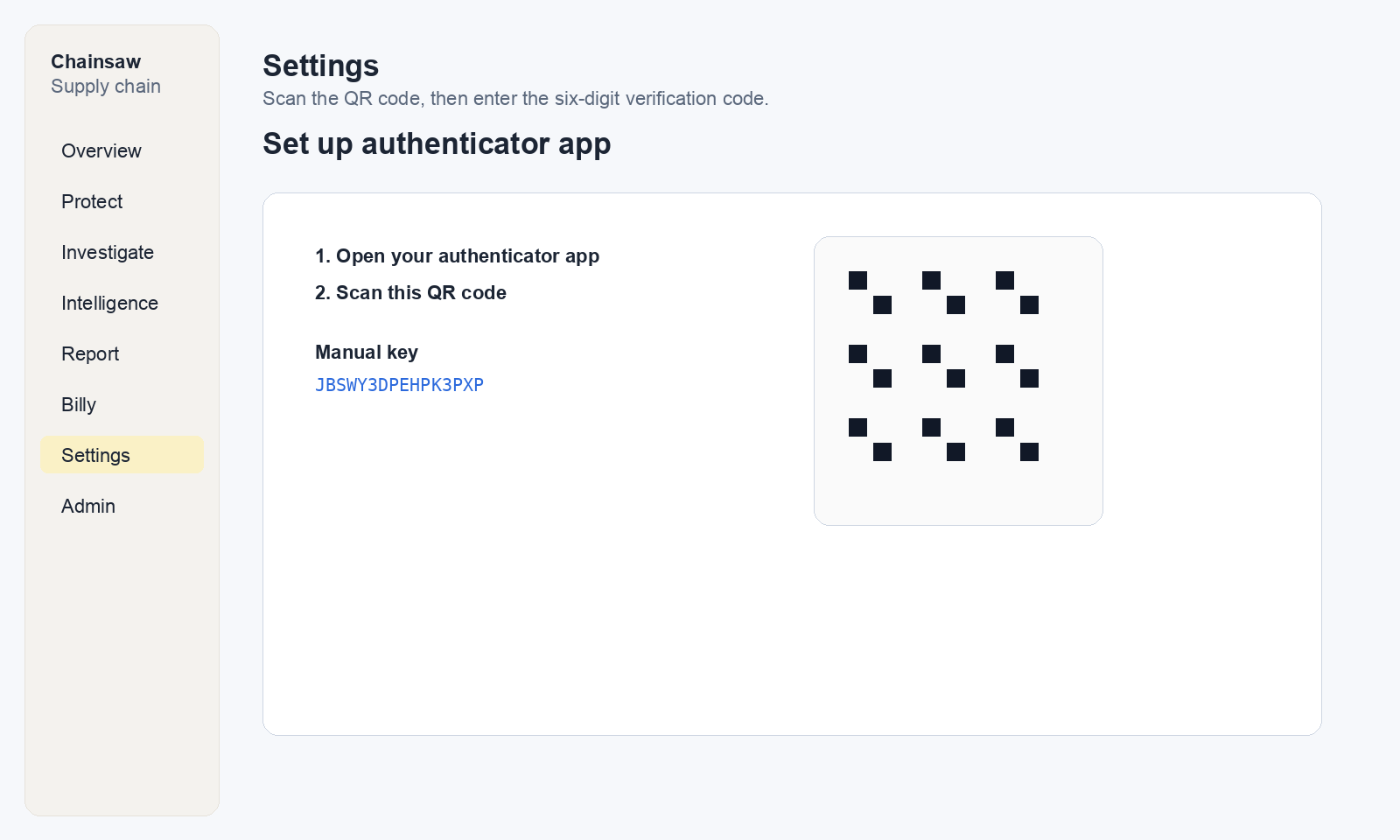
Scan the QR Code
Chainsaw displays a QR code. Scan it with your authenticator app:
- Open your authenticator app (Google Authenticator, 1Password, Authy, etc.)
- Tap the “+” or “Add account” button
- Scan the QR code displayed on screen
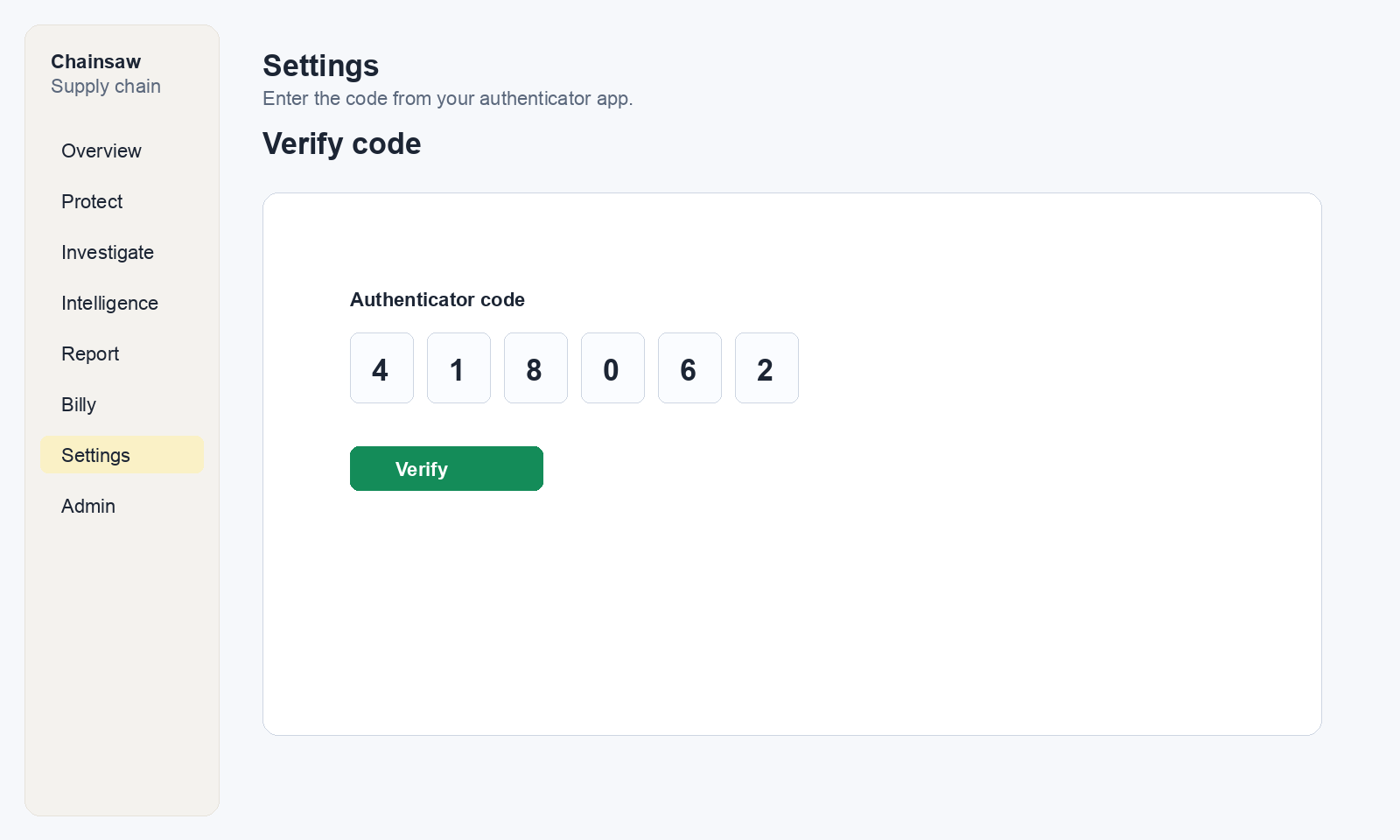
Enter the Verification Code
After scanning, your authenticator app displays a 6-digit code. Enter it to confirm setup:
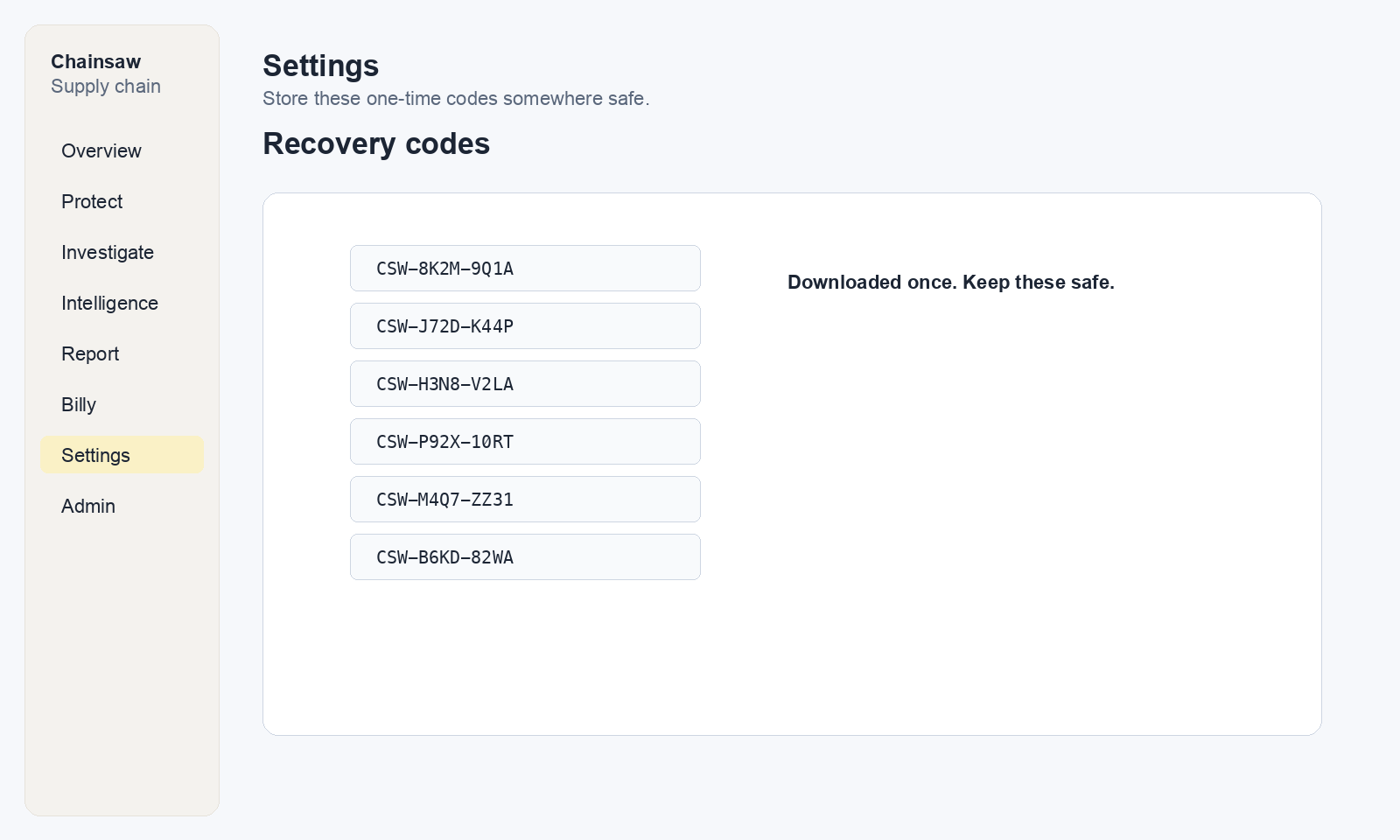
Step 3: Save Your Recovery Codes
After enabling 2FA, Chainsaw generates recovery codes. These are one-time-use codes that let you log in if you lose access to your authenticator app.
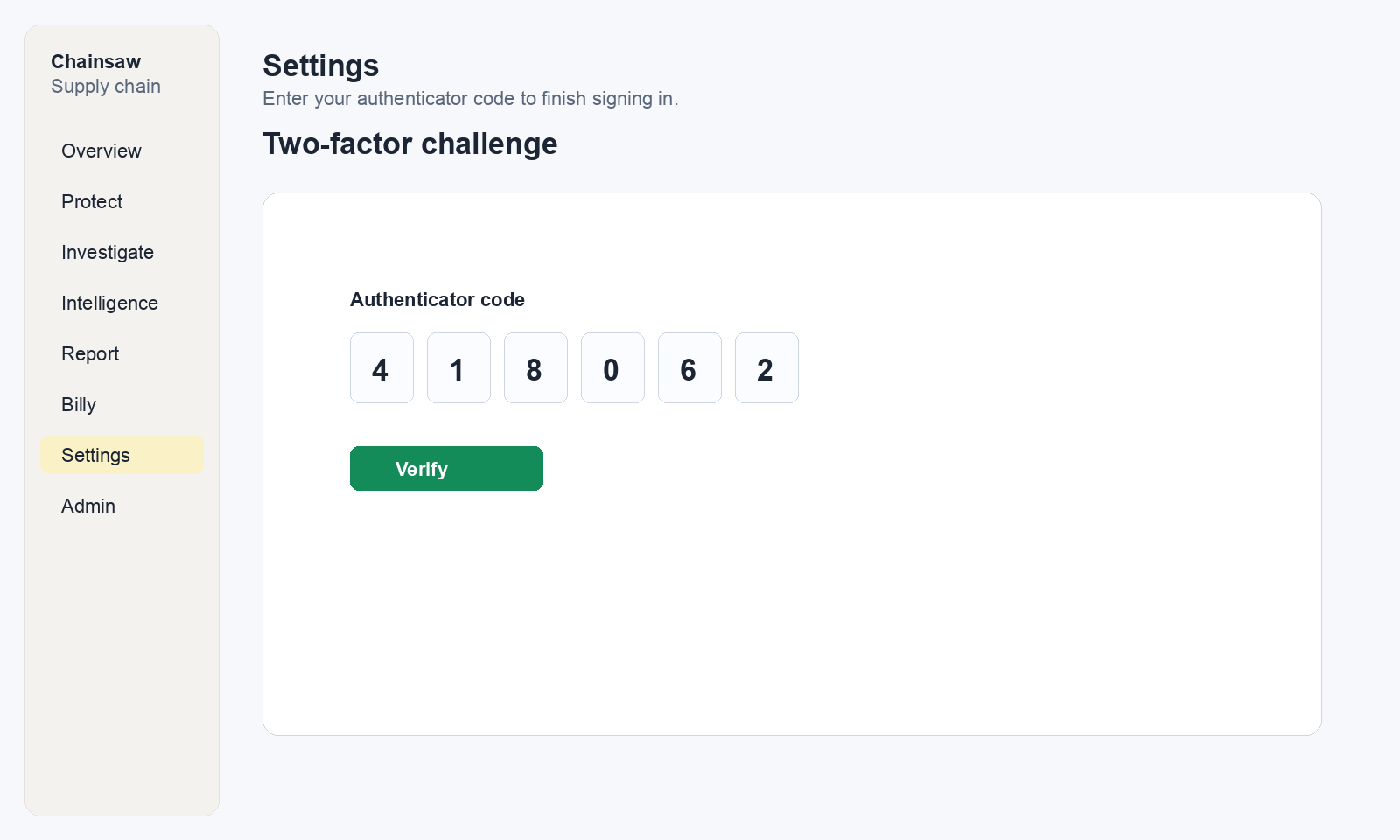
Step 4: Log In with 2FA
After enabling 2FA, your login flow changes:
- Enter your email and password as usual
- A second screen prompts for your 2FA code
- Open your authenticator app and enter the current 6-digit code
- Click Verify
Step 5: Using a Recovery Code
If you can’t access your authenticator app:
- On the 2FA prompt, click Use a recovery code
- Enter one of your saved recovery codes
- Log in successfully
For Administrators: Managing Team 2FA
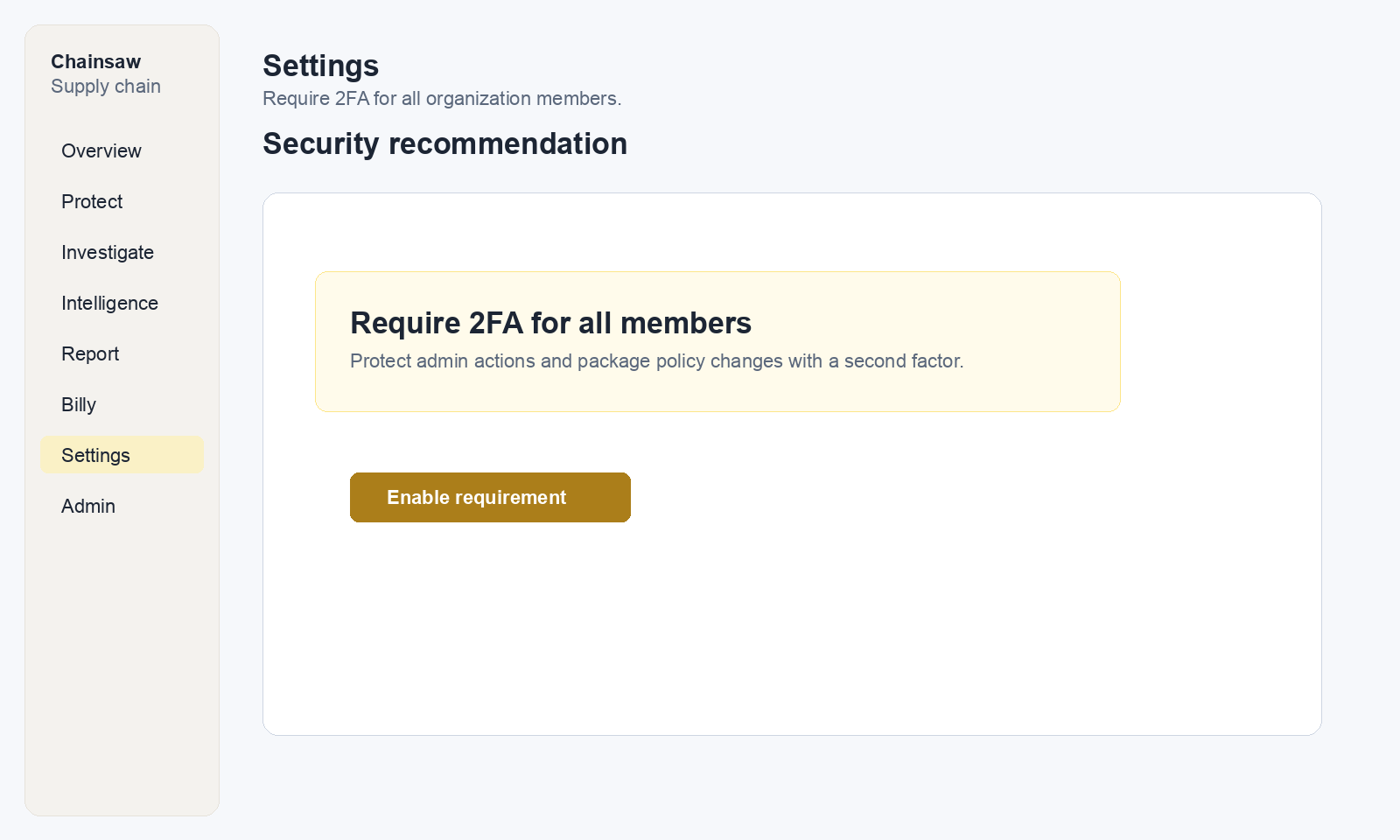
Monitoring 2FA Adoption
Chainsaw displays a 2FA nudge banner on the dashboard for users who haven’t enabled 2FA. This encourages adoption without forcing it.
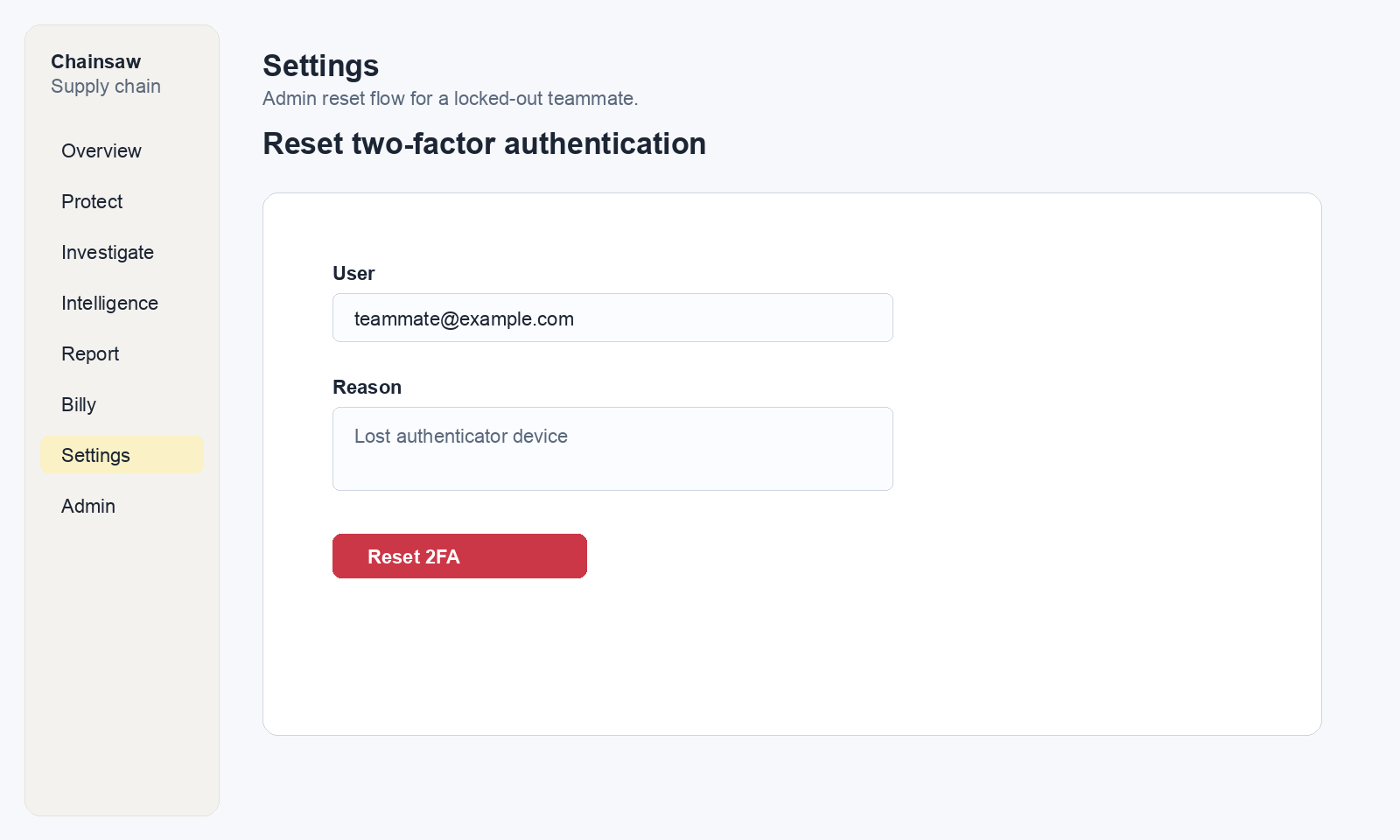
Resetting a User’s 2FA
If a team member loses access to their authenticator app and recovery codes:
- Navigate to Access → Members
- Find the user
- Click Reset 2FA
- The user’s 2FA is cleared and they can set it up again on next login
Supported Authenticator Apps
| App | Platform | Notes |
|---|---|---|
| Google Authenticator | iOS, Android | Simple, widely used |
| 1Password | All platforms | Integrated with password manager |
| Authy | iOS, Android, Desktop | Multi-device sync, cloud backup |
| Microsoft Authenticator | iOS, Android | Good for Microsoft-heavy environments |
| Bitwarden | All platforms | Open source password manager with TOTP |
Best Practices
- Enable 2FA on all admin and owner accounts first — These have the highest privilege level
- Encourage all users to enable 2FA — The nudge banner helps
- Store recovery codes separately from passwords — Don’t put them in the same place
- Use a password manager with TOTP support — 1Password and Bitwarden can generate TOTP codes
- Verify identity before resetting 2FA — Prevent social engineering
Next Steps
- How to Configure SSO/OIDC — Enterprise single sign-on
- How to Invite Team Members and Assign Roles — Team management
- How to Create and Manage Client Credentials — Service authentication