How to Invite Team Members and Assign Roles
Invite users via email, understand the role hierarchy (member, manager, admin, owner), and configure what each role can access.
Overview
Chainsaw uses role-based access control (RBAC) to determine what each user can see and do. This tutorial covers inviting team members, understanding the role hierarchy, and managing user access.
Prerequisites
- Admin or Owner role in Chainsaw
- Team members’ email addresses
Step 1: Understand the Role Hierarchy
Chainsaw has four organization-level roles (plus a global admin role):
| Role | Level | Capabilities |
|---|---|---|
| Global Admin | 4 | Full system access. Can manage all organizations. Only assignable at the system level. |
| Owner | 3 | Full organization access. Can manage settings, users, policies, BOM, and audit. Can invite users and assign roles. |
| Admin | 3 | Same as Owner within the organization. Can manage settings and users. |
| Manager | 2 | Can access Policies, BOM, and Audit. Can view and manage most operational features but cannot change org settings. |
| Member | 1 | Read-only access to Overview and Repositories. Cannot access policies, BOM, audit, or settings. |
What Each Role Can Access
| Feature | Member | Manager | Admin/Owner | Global Admin |
|---|---|---|---|---|
| Overview Dashboard | Yes | Yes | Yes | Yes |
| Traffic | Yes | Yes | Yes | Yes |
| Repositories | Yes | Yes | Yes | Yes |
| Policies | No | Yes | Yes | Yes |
| Bill of Materials | No | Yes | Yes | Yes |
| Audit Reports | No | Yes | Yes | Yes |
| Billy (AI Assistant) | Yes | Yes | Yes | Yes |
| Access (Credentials) | Yes | Yes | Yes | Yes |
| Members Management | No | No | Yes | Yes |
| Settings | No | No | Yes | Yes |
| Global Admin Panel | No | No | No | Yes |
Step 2: Invite a Team Member
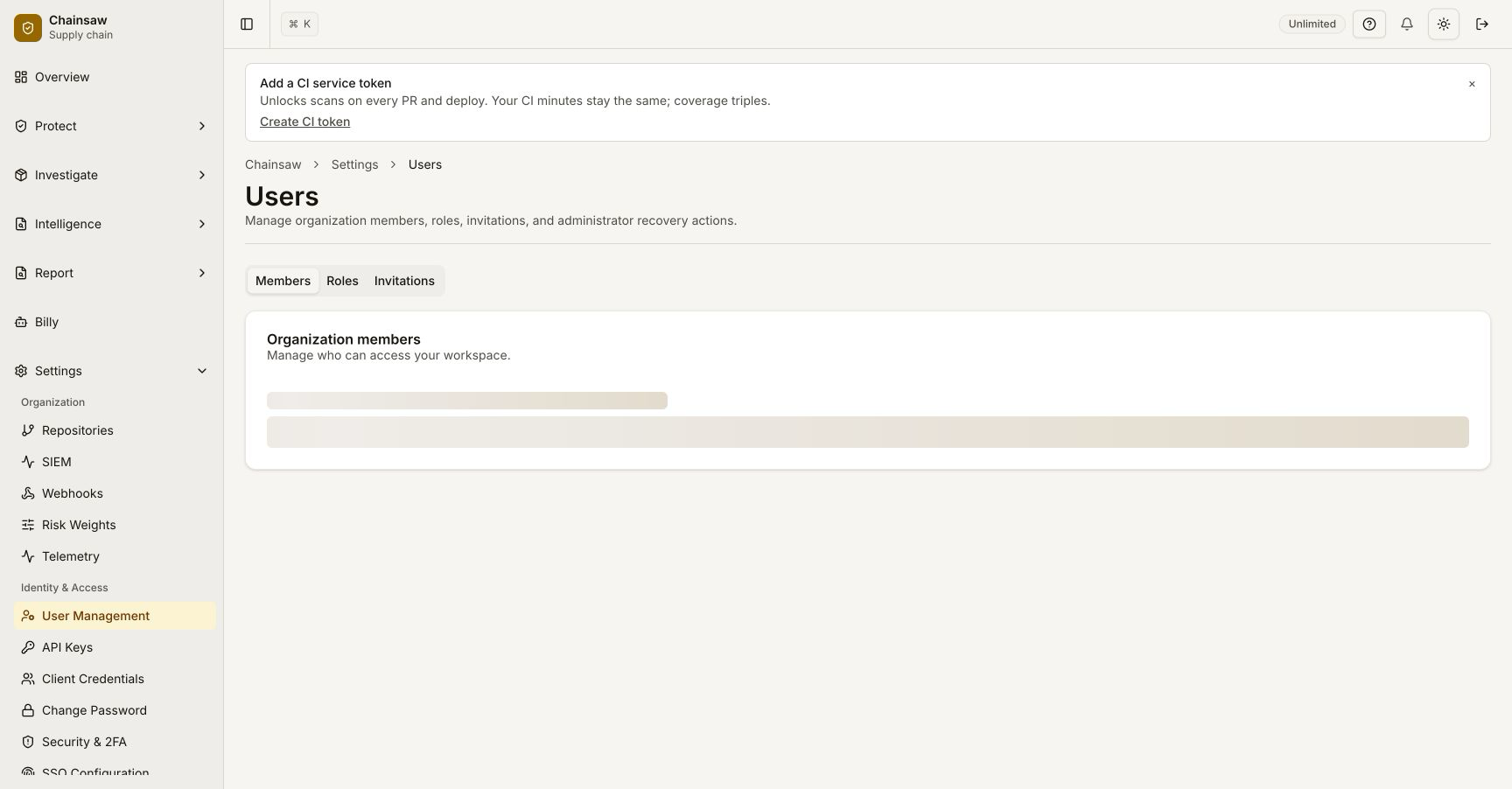
Navigate to Access and switch to the Members tab.
- Click Invite Member
- Enter the team member’s email address
- Select their role
- Click Send Invitation
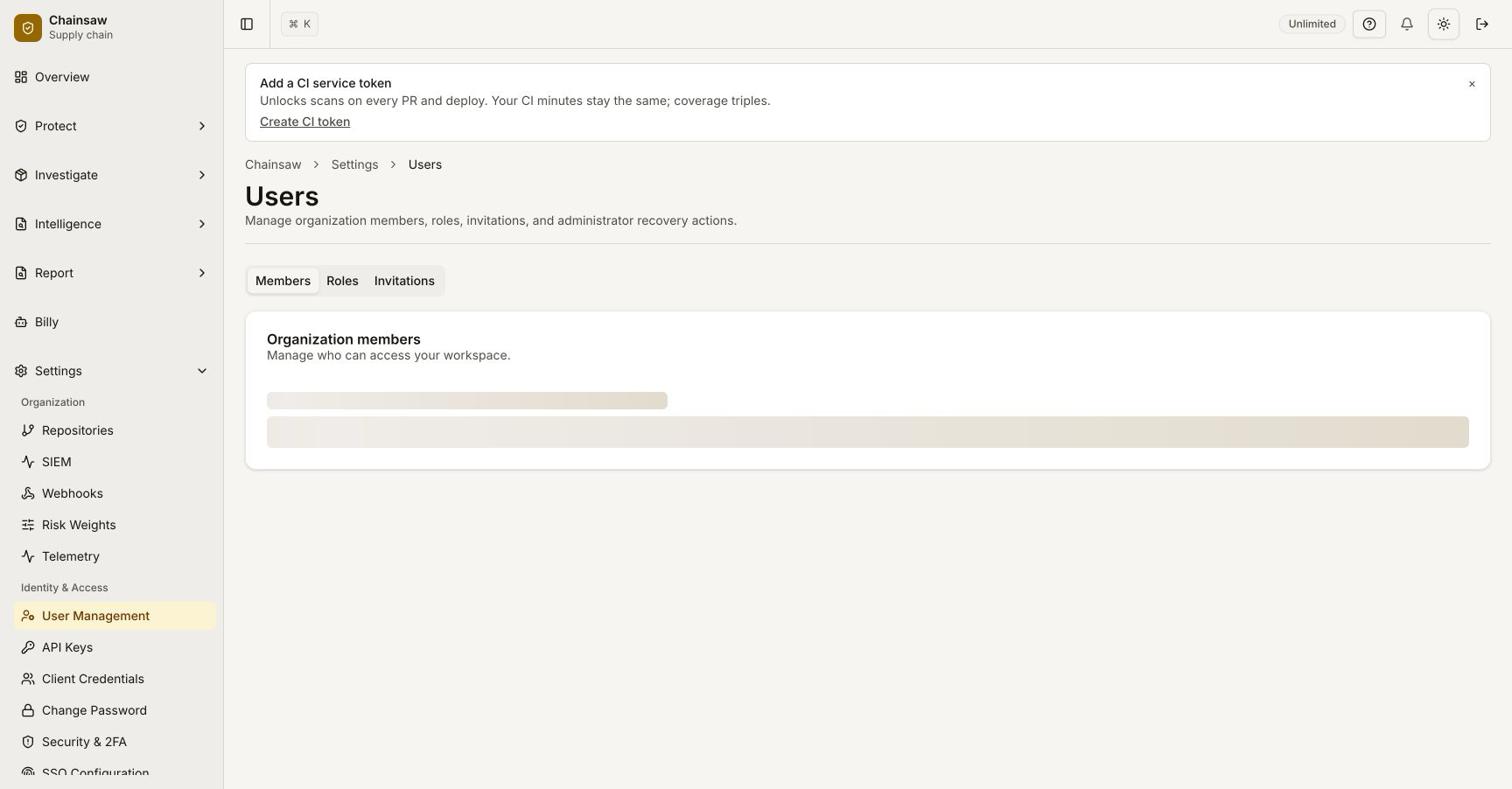
The invited user receives an email with a link to accept the invitation.
Step 3: Accepting an Invitation
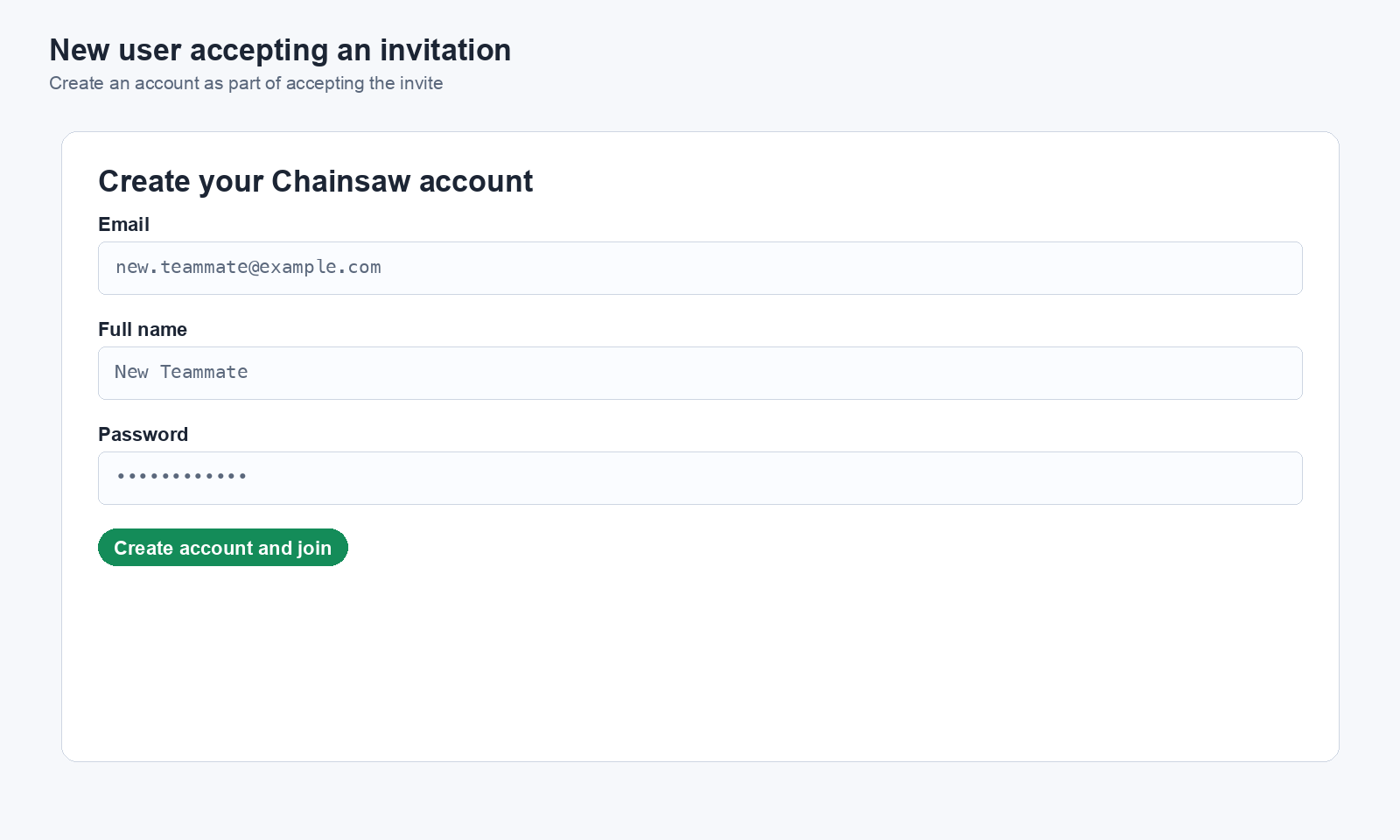
When a team member clicks the invitation link, they’re taken to the invitation acceptance page:
New Users
- View the invitation details (role, organization, expiration)
- Create an account with their email and a password
- Click Accept Invitation
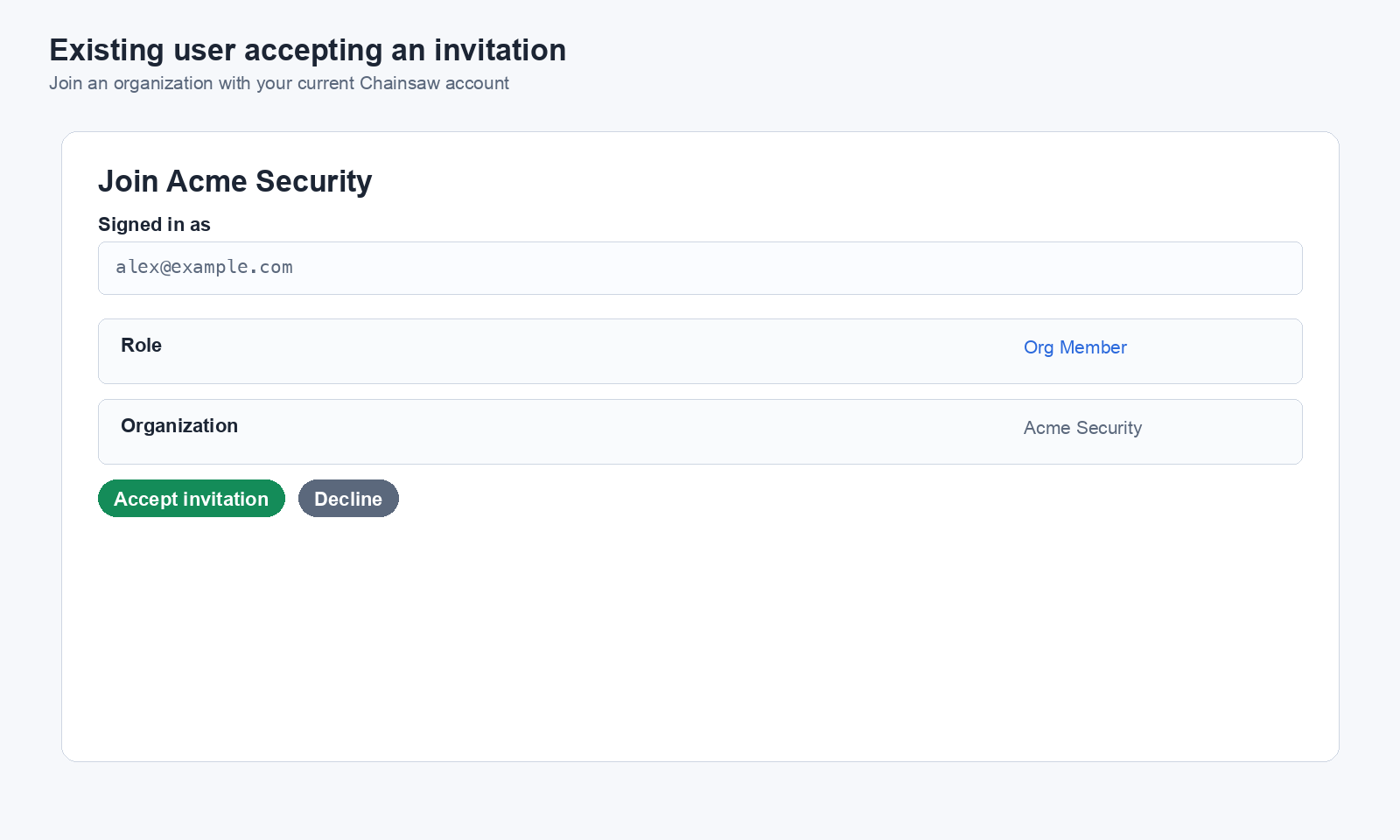
Existing Users
If the user already has a Chainsaw account:
- Log in if not already authenticated
- View the invitation details
- Click Accept
Step 4: Manage User Roles
After a user joins, you can change their role:
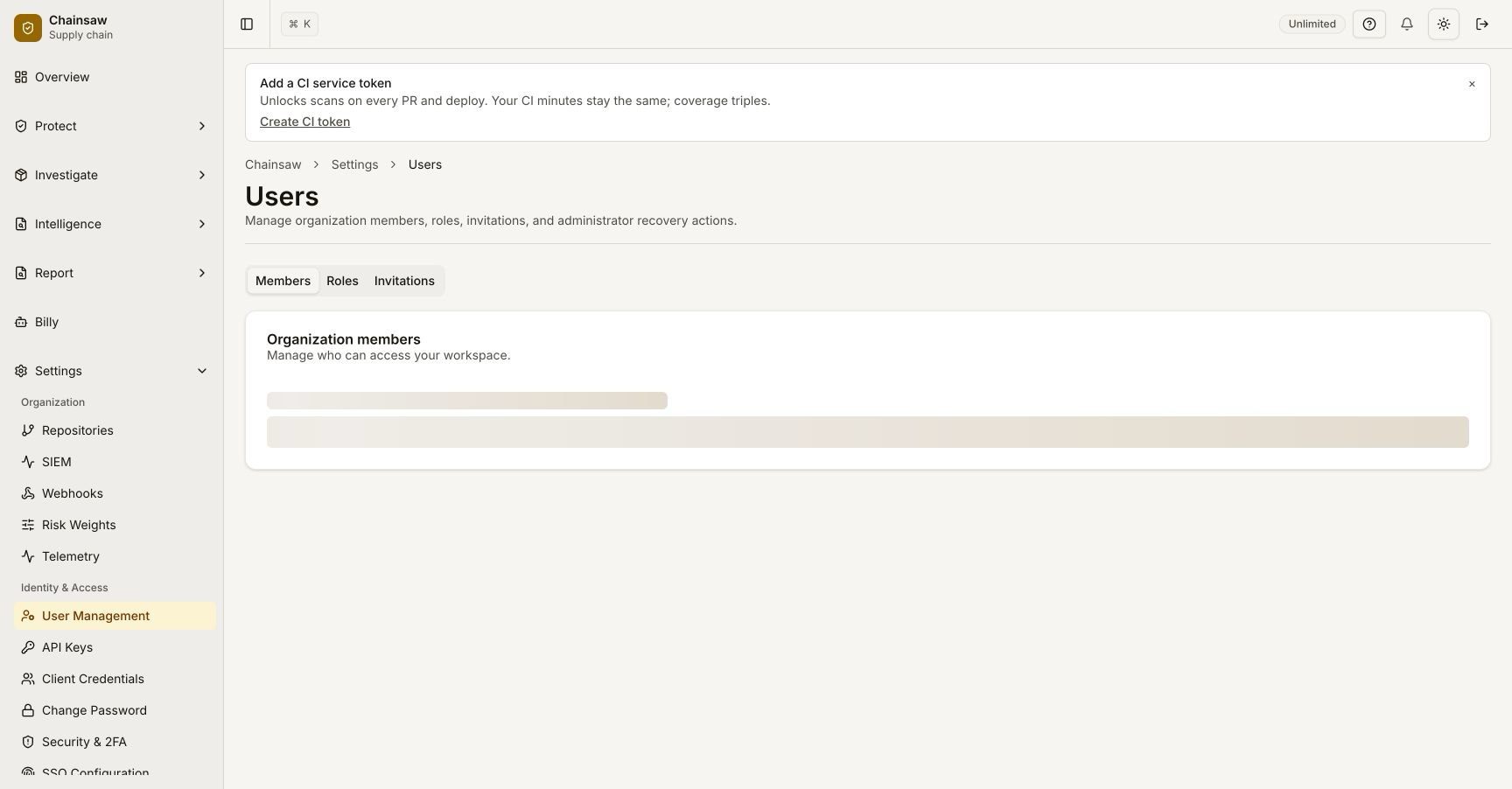
- Navigate to Access → Members
- Find the user in the list
- Click on their role to change it
- Select the new role from the dropdown
Step 5: Manage Groups
Groups let you organize users for policy targeting. You can create policies that apply to specific groups of users.
- Navigate to Access → Members
- Create a group (e.g.,
frontend-team,security-team) - Add users to the group
Groups can then be referenced in policy scope to apply rules to specific teams.
Step 6: Reset User Passwords and 2FA
As an Admin or Owner, you can help team members with account issues:
Reset Password
- Find the user in the Members list
- Click Reset Password
- The user receives a password reset email
Reset 2FA
If a team member loses access to their authenticator app:
- Find the user in the Members list
- Click Reset 2FA
- The user can set up 2FA again on next login
Best Practices
- Start with Member role — Promote users to higher roles as needed
- Use groups — Organize by team for easier policy management
- Enable 2FA — Encourage all users to set up two-factor authentication
- Review access periodically — Remove users who no longer need access
- Separate service credentials — Use client credentials (not user accounts) for CI/CD pipelines
Guided Tours for New Members
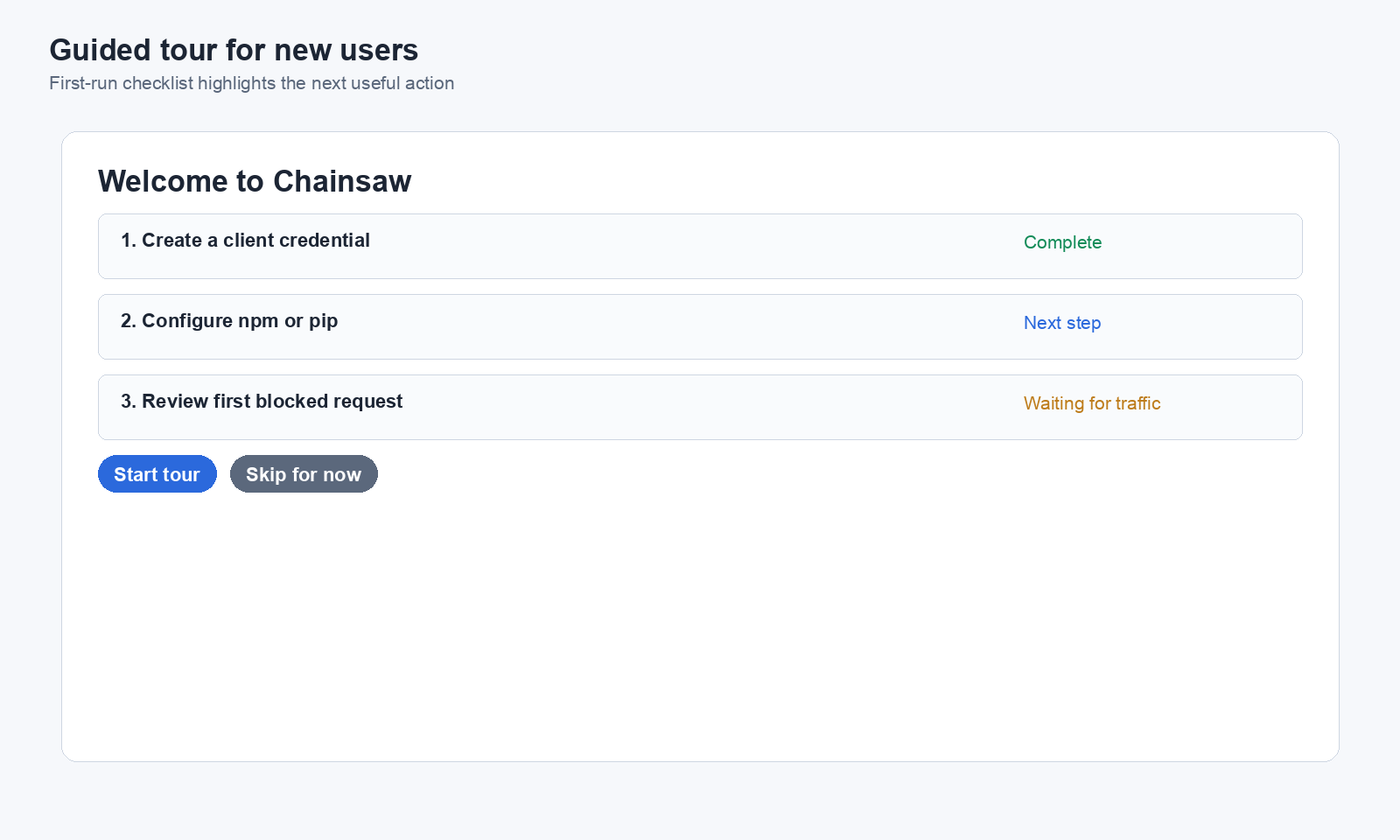
Chainsaw includes interactive guided tours that help new team members learn the interface. Tours start automatically on first login and can be replayed from the navigation bar.
Next Steps
- How to Set Up Two-Factor Authentication — Secure your team’s accounts
- How to Configure SSO/OIDC — Enterprise authentication
- How to Create and Manage Client Credentials — Separate service credentials for pipelines