How to Export and Analyze Your BOM as CSV
Export the full bill of materials with supply chain columns, filter before export, and use the CSV for compliance reporting.
Overview
While CycloneDX SBOMs are ideal for machine-to-machine integration, CSV exports are perfect for manual analysis in spreadsheets, sharing with non-technical stakeholders, and ad-hoc compliance reporting. Chainsaw’s CSV export includes 16 supply chain columns covering trust scores, provenance, malware detection, and more.
Prerequisites
- Manager role or above in Chainsaw
- Packages recorded in the Bill of Materials
Step 1: Navigate to the Bill of Materials
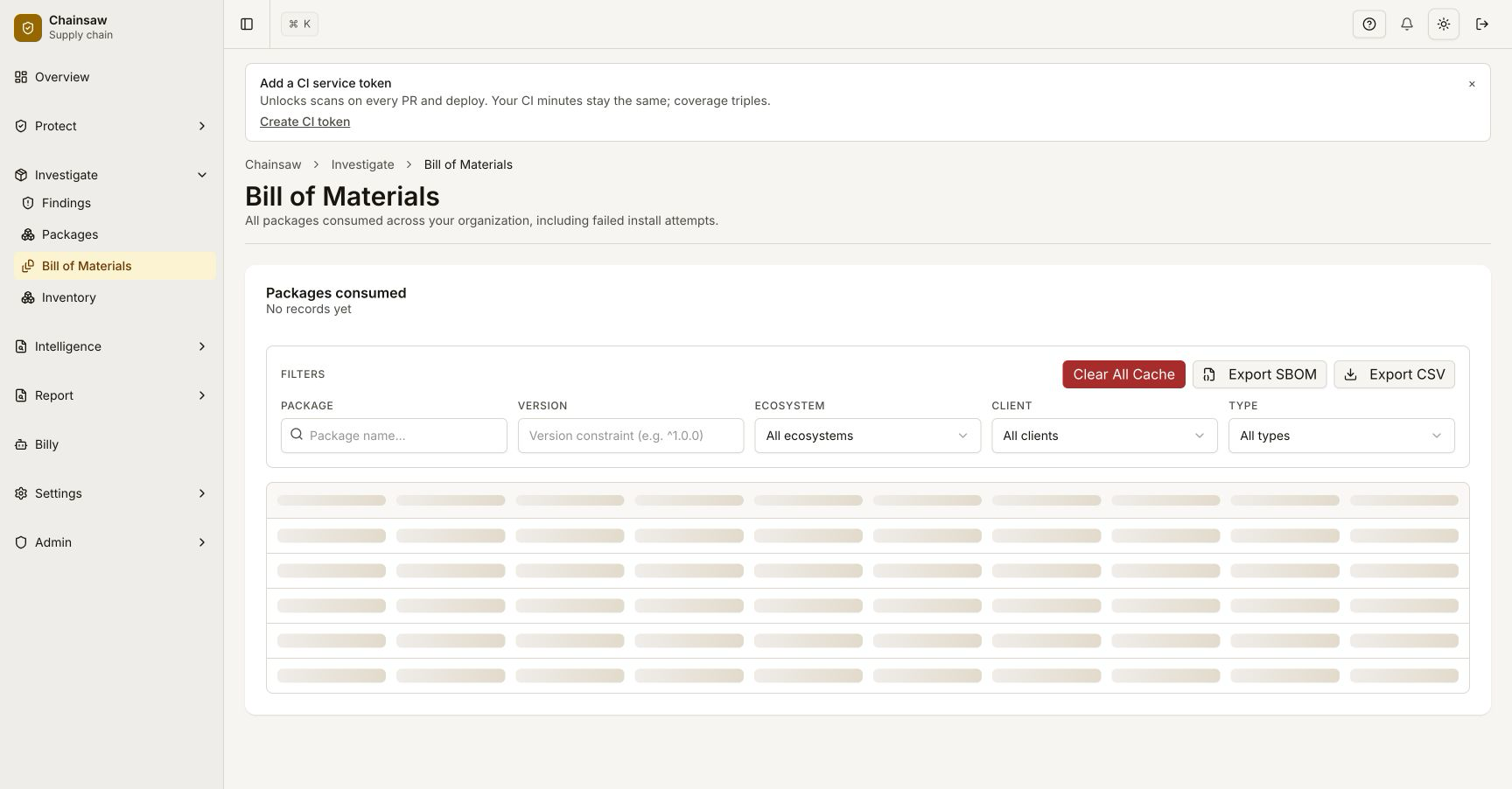
Click Bill of Materials in the sidebar.
Step 2: Apply Filters
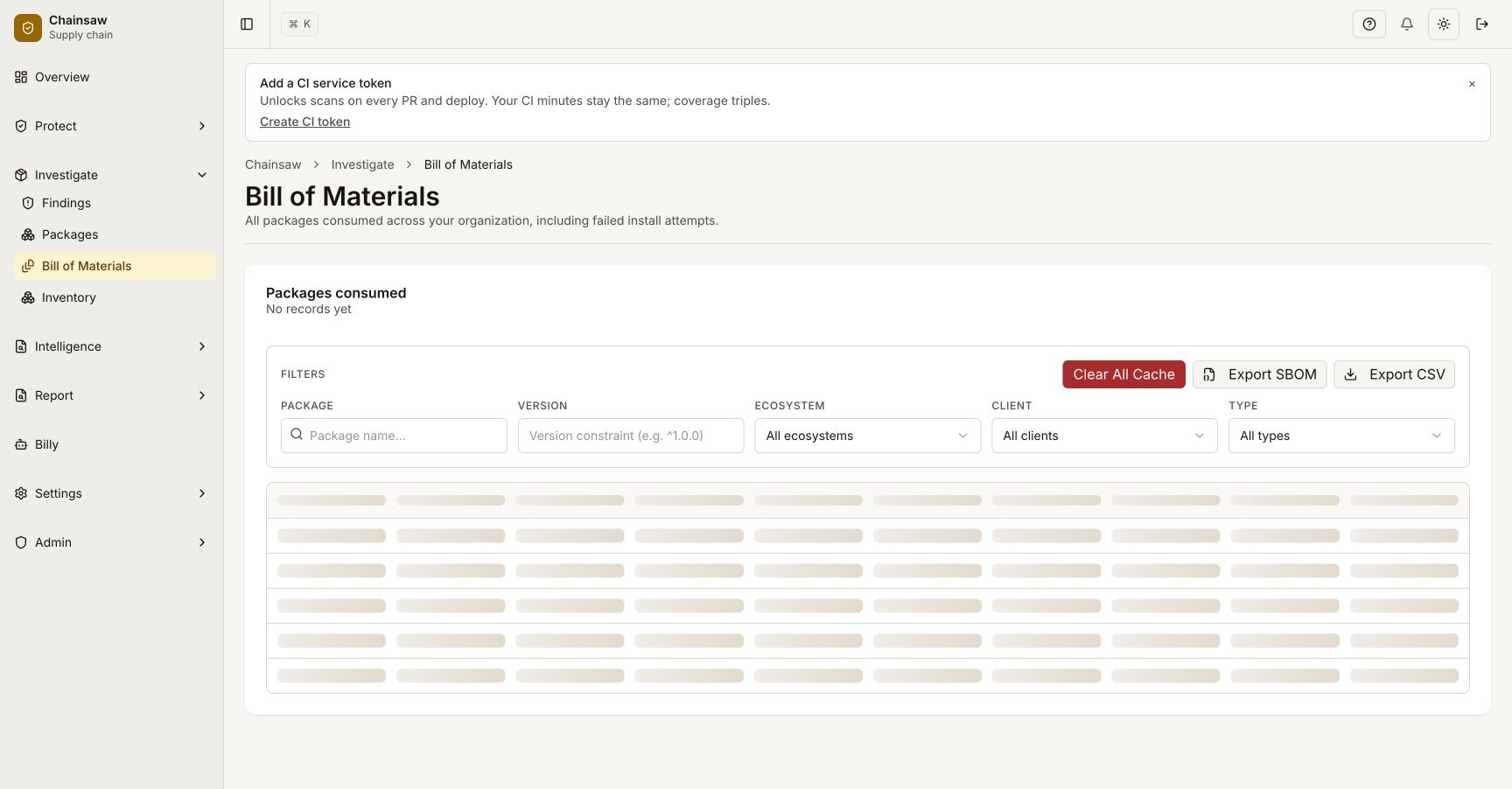
Filter the BOM to export only what you need:
- Client Type: End User, Service Token, or AI Agent
- Ecosystem: Filter to a specific package manager
- Package Name: Search for specific packages
Step 3: Export as CSV
Click the Export as CSV button. The download begins immediately.
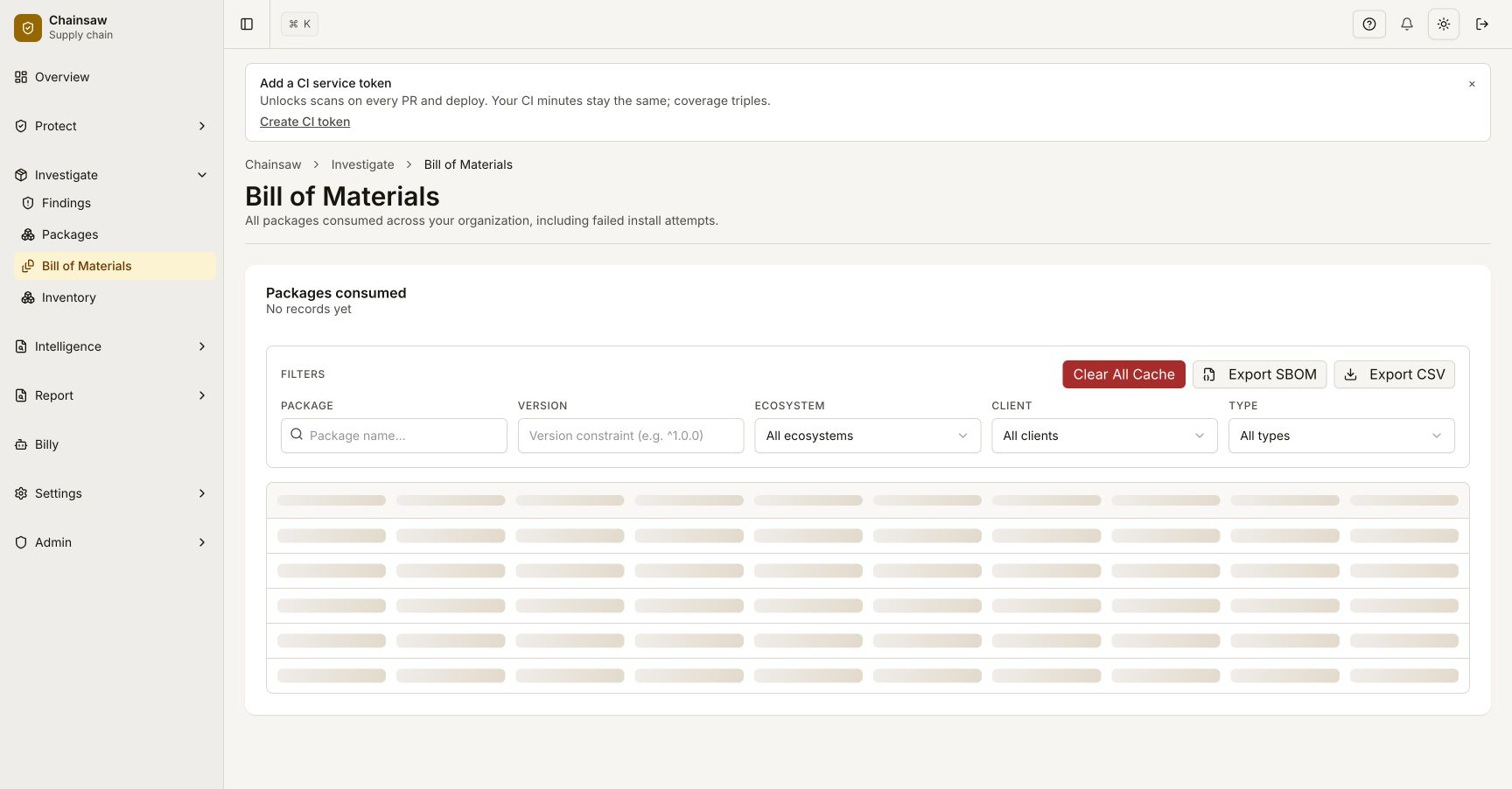
The file is named bom-YYYY-MM-DD.csv.
Step 4: Understand the CSV Columns
The exported CSV contains 16 fields:
| Column | Description |
|---|---|
format | Package ecosystem (npm, pip, maven, etc.) |
repository | Chainsaw repository name |
package_name | Package name |
package_version | Package version |
client_id | Client credential that installed the package |
client_type | End User, Service Token, or AI Agent |
last_install_attempt | Timestamp of the most recent install |
install_count | Total number of installs for this package-client pair |
last_outcome | Success, blocked, or flagged |
provenance_status | Verified, unverified, unavailable, missing, or failed |
malware_status | Clean, malicious, or unknown |
malware_id | OSV identifier if malicious (e.g., MAL-2024-0001) |
typosquat_status | Clean, suspected, or confirmed_safe |
typosquat_similar_to | Popular package it’s similar to (if suspected) |
checksum_verified | Whether integrity hash was verified |
Step 5: Analyze in a Spreadsheet
Open the CSV in your preferred spreadsheet tool. Useful analyses:
Filter for High-Risk Packages
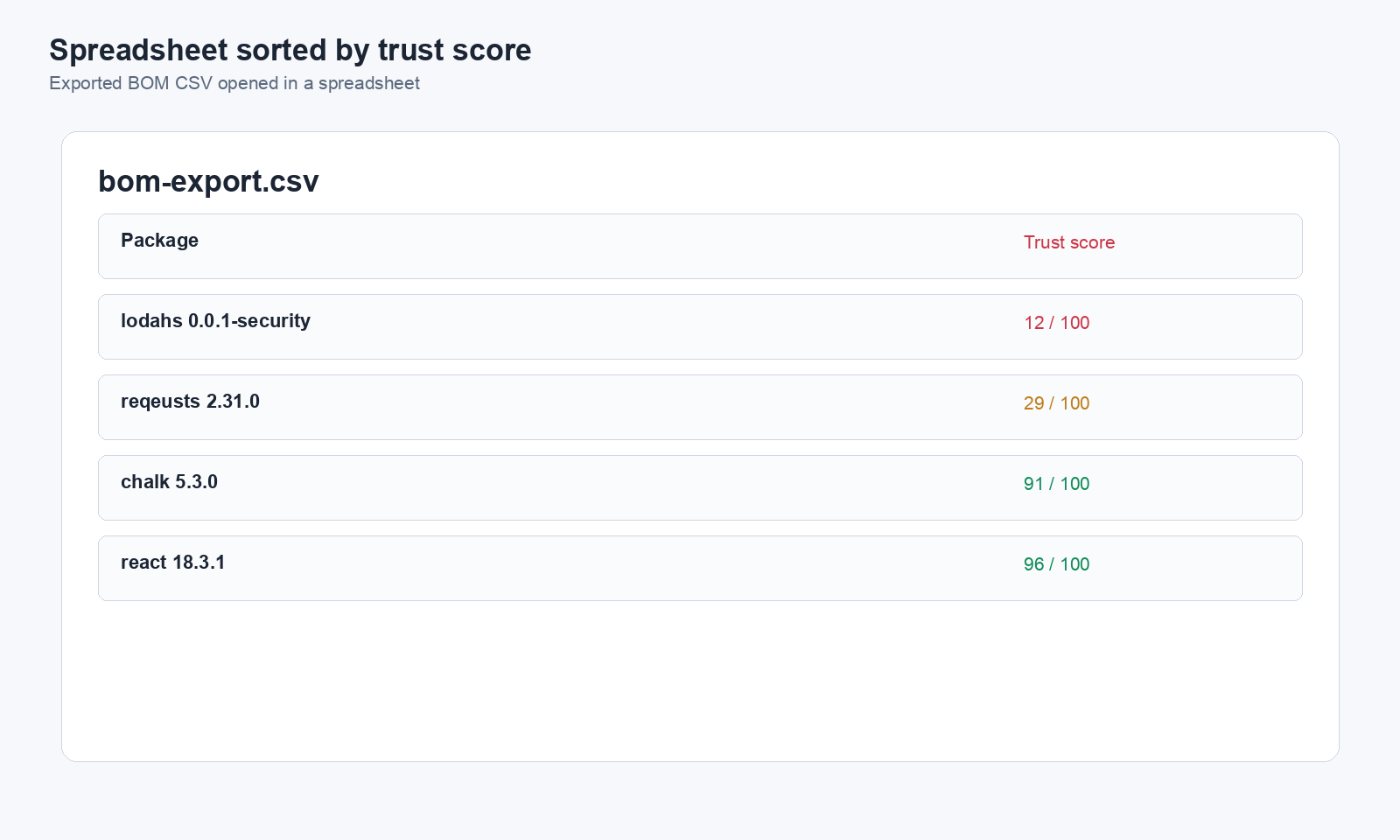
Sort by malware_status and typosquat_status to surface the riskiest
packages. The CSV no longer carries a composite trust score — see the
intelligence API for the risk-v2 evaluation, which is scored per coordinate
and kept current.
Identify Malware Hits
Filter malware_status for malicious to find any confirmed malware.
Provenance Coverage
Create a pivot table of provenance_status values to see what percentage of your supply chain has verified provenance.
Blocked Packages Report
Filter last_outcome for blocked to see all packages that were denied by policy.
Step 6: Export via API
For automated reporting, use the API:
curl -X GET "https://chain305.com/chainproxy/api/v1/bom/export?format=npm&client_type=service-token" \
  -H "Authorization: Bearer YOUR_TOKEN" \
  -o bom-$(date +%Y-%m-%d).csv
Available Query Parameters
| Parameter | Description | Example |
|---|---|---|
format | Filter by ecosystem | npm, pip, maven |
client_id | Filter by client credential | abc123 |
client_type | Filter by client type | end-user, service-token, ai-agent |
package_name | Filter by package name | lodash |
version | Filter by version (supports semver constraints) | ^4.0.0 |
Next Steps
- How to Export Your SBOM in CycloneDX Format — Machine-readable SBOM for tool integration
- How to Use Audit Logs to Track Consumption — Complement BOM exports with event-level audit data
- How to Use the Dashboard to Track Supply Chain Health KPIs — Visual overview of supply chain health