How to Export Your Software Bill of Materials (SBOM) in CycloneDX Format
Generate a CycloneDX 1.6 SBOM from the BOM page, filter by client/ecosystem/package, and integrate SBOM exports into your compliance workflow.
Overview
A Software Bill of Materials (SBOM) is a formal, machine-readable inventory of all software components in your supply chain. Chainsaw generates SBOMs in the CycloneDX 1.6 standard, including vulnerability data, license information, provenance status, and trust scores for every package.
SBOMs are increasingly required for regulatory compliance (e.g., Executive Order 14028, EU Cyber Resilience Act) and are essential for incident response when new vulnerabilities are disclosed.
chainsaw sbom export renders the
same inventory in either format: --format cyclonedx (default, richer dependency
graph) or --format spdx for SPDX 2.3 when an auditor mandates it. Add
--output sbom.json to write to a file. This page covers the dashboard export.Prerequisites
- Manager role or above in Chainsaw
- Packages recorded in the Bill of Materials (i.e., traffic has flowed through the proxy)
Step 1: Navigate to the Bill of Materials
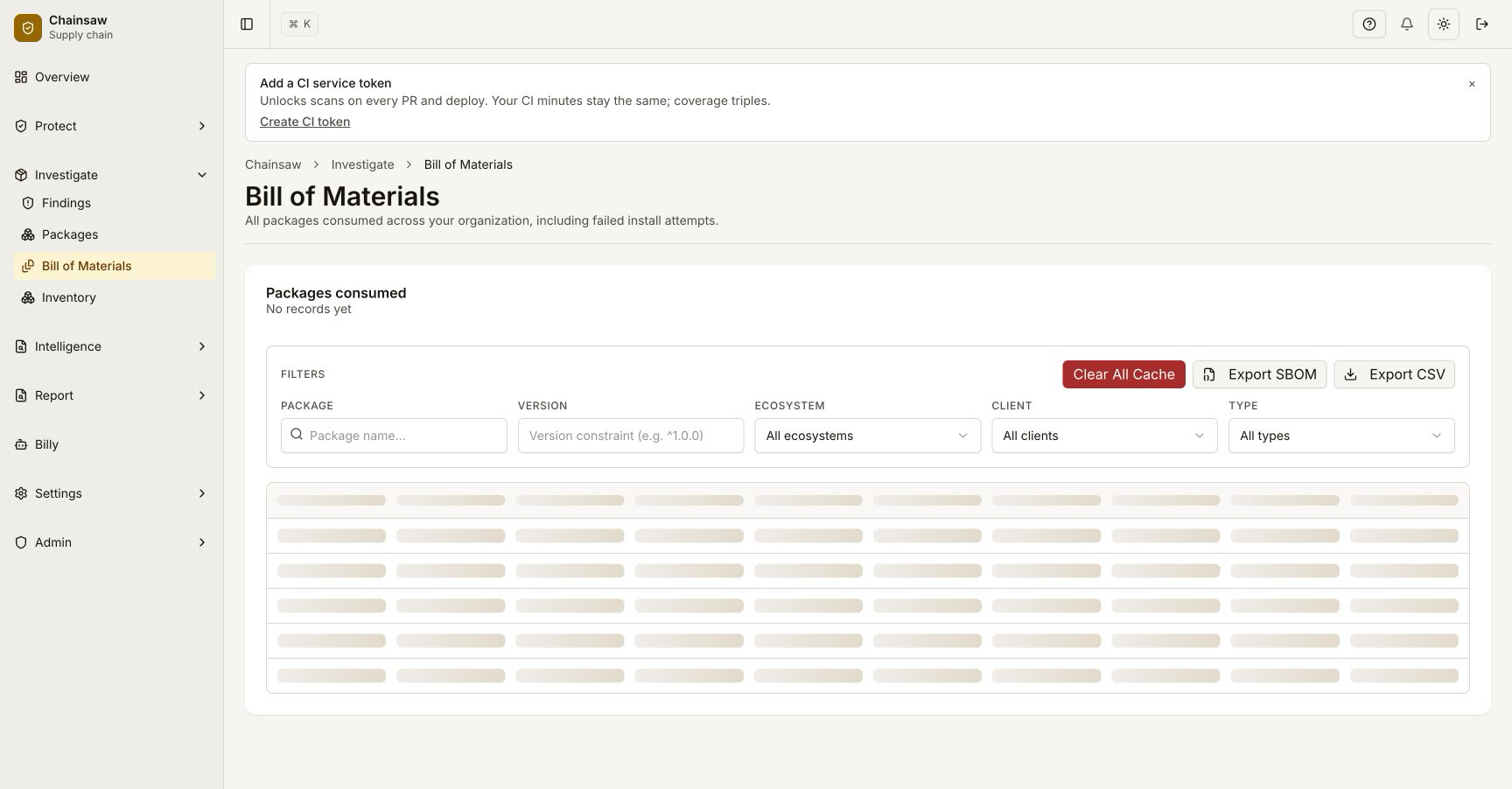
Click Bill of Materials in the sidebar. This page shows all packages consumed by your organization.
Step 2: Apply Filters (Optional)
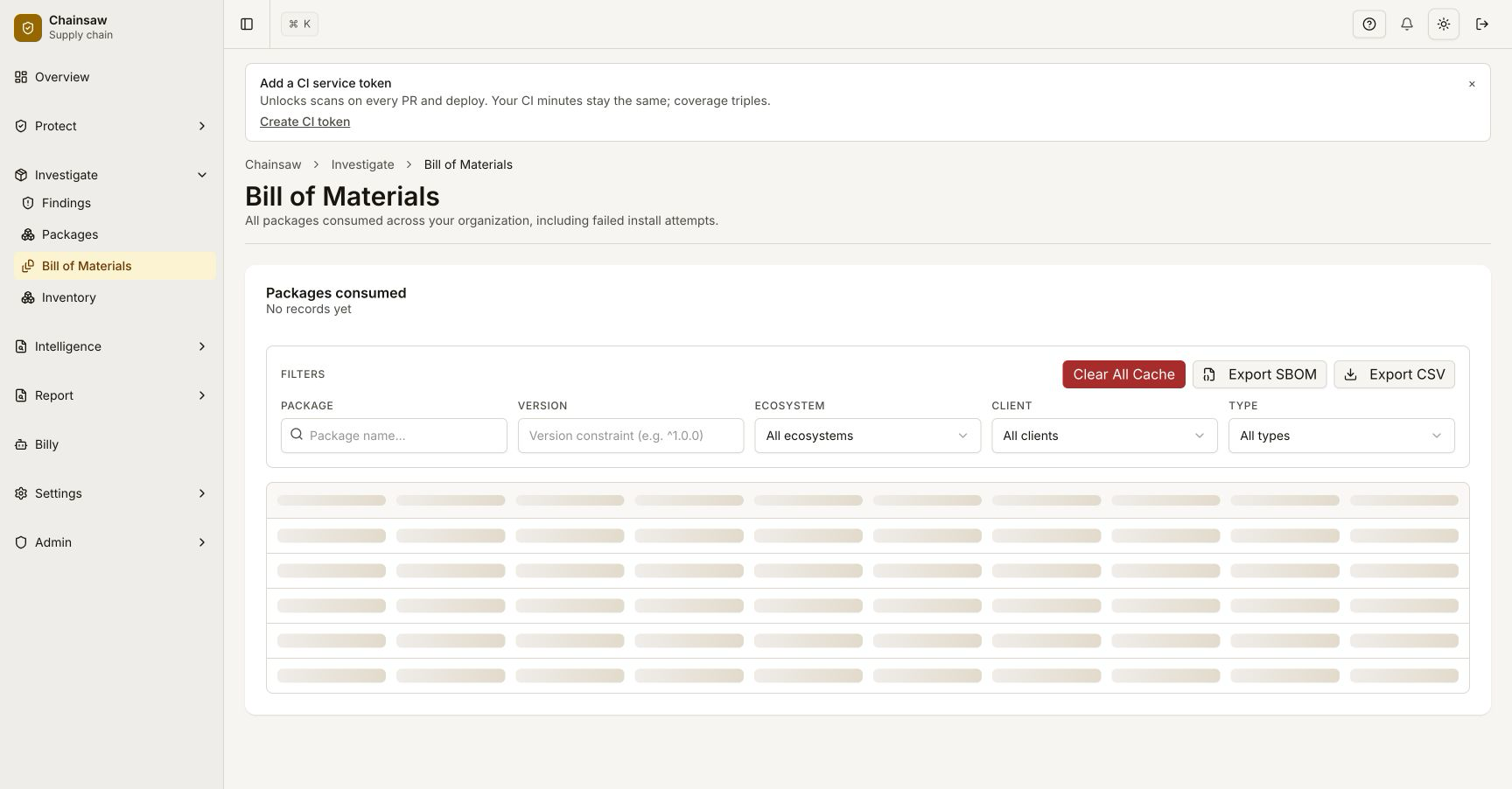
Before exporting, you can filter the BOM to create a targeted SBOM:
- Client Type — Export only packages used by production service tokens
- Ecosystem — Generate an SBOM for a specific ecosystem (e.g., npm only)
- Client ID — Export packages for a specific team or pipeline
- Package Name — Search for specific packages
Step 3: Export as CycloneDX SBOM
Click the Export SBOM button. Chainsaw generates a CycloneDX 1.6 JSON file.
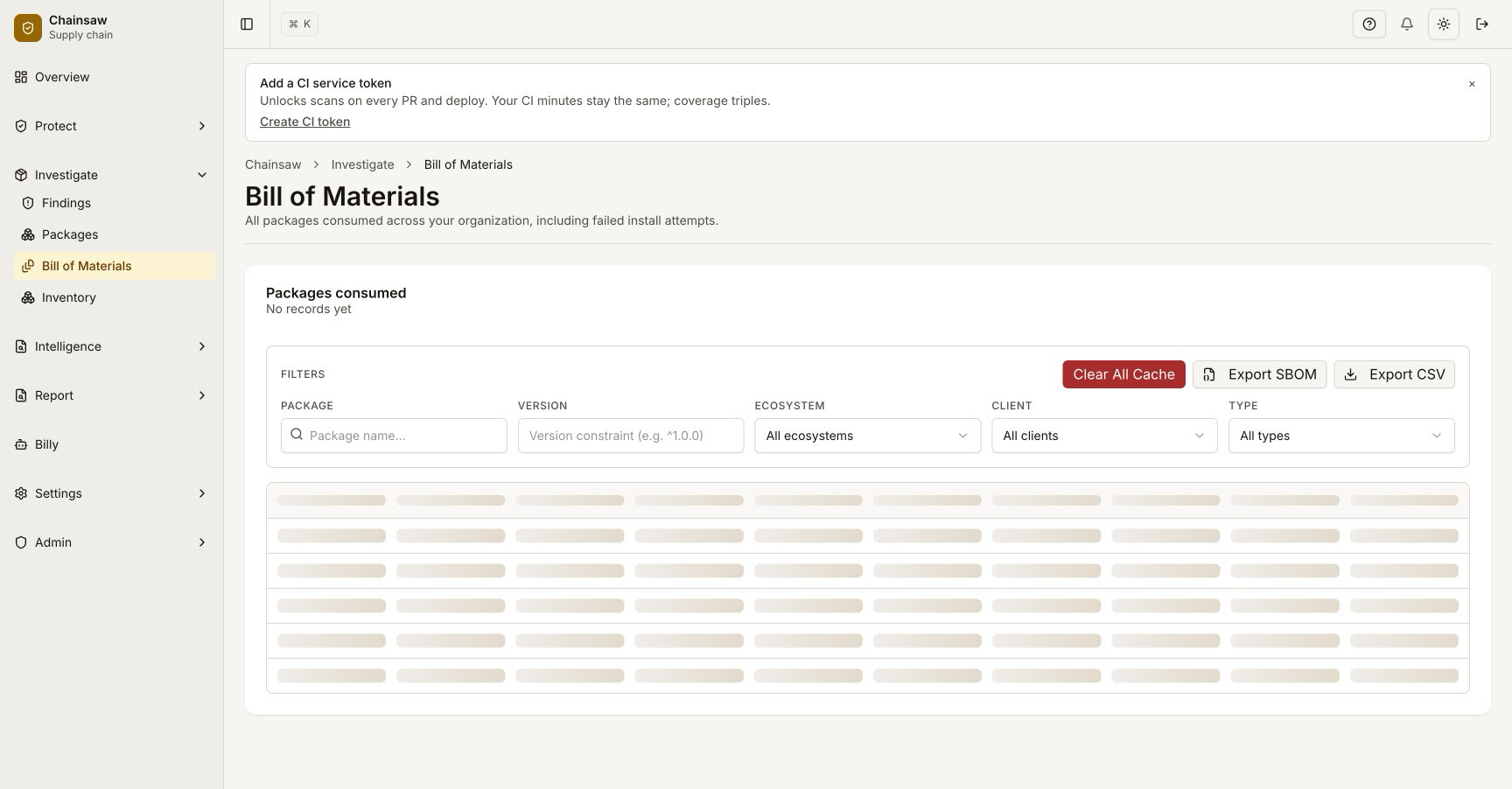
The downloaded file is named sbom-YYYY-MM-DD.cdx.json.
Step 4: Understand the SBOM Contents
The exported CycloneDX SBOM includes:
Metadata Section
- Format: CycloneDX
- Spec Version: 1.6
- Serial Number: Unique identifier for this SBOM
- Timestamp: When the SBOM was generated
- Tool: Chainsaw (with version)
Component Entries
Each package is represented as a component with:
| Field | Description | Example |
|---|---|---|
| type | Component type | library |
| name | Package name | lodash |
| version | Package version | 4.17.21 |
| purl | Package URL (standard identifier) | pkg:npm/lodash@4.17.21 |
| licenses | SPDX license identifiers | MIT |
| hashes | SHA-256 checksum | abc123... |
Supply Chain Properties
Each component also includes Chainsaw-specific properties:
| Property | Description |
|---|---|
chainsaw:provenance_status | SLSA provenance verification result |
chainsaw:ecosystem | Package ecosystem (npm, pip, etc.) |
chainsaw:repository | Chainsaw repository name |
Vulnerability Data
If vulnerabilities are known, they are included as:
| Field | Description |
|---|---|
vulnerabilities[].id | CVE identifier |
vulnerabilities[].ratings[].score | CVSS score |
vulnerabilities[].ratings[].method | Scoring method (CVSSv3) |
Step 5: Validate the SBOM
Use the CycloneDX CLI to validate your exported SBOM:
# Install CycloneDX CLI
npm install -g @cyclonedx/cyclonedx-cli

# Validate the SBOM
cyclonedx validate --input-file sbom-2026-04-02.cdx.json
Step 6: Export via API
For automated compliance pipelines, use the API directly:
curl -X POST "https://chain305.com/chainproxy/api/v1/sbom" \
  -H "Authorization: Bearer YOUR_TOKEN" \
  -H "Content-Type: application/json" \
  -d '{
    "client_id": "optional-filter",
    "format": "npm",
    "package_name": "optional-filter"
  }' \
  -o sbom-$(date +%Y-%m-%d).cdx.json
Step 7: Browse Snapshot History on the /sbom Dashboard
Chainsaw stores periodic CycloneDX snapshots automatically — you do not have to remember to export. Open Reports → SBOM (or visit /sbom directly) to see the snapshot list.
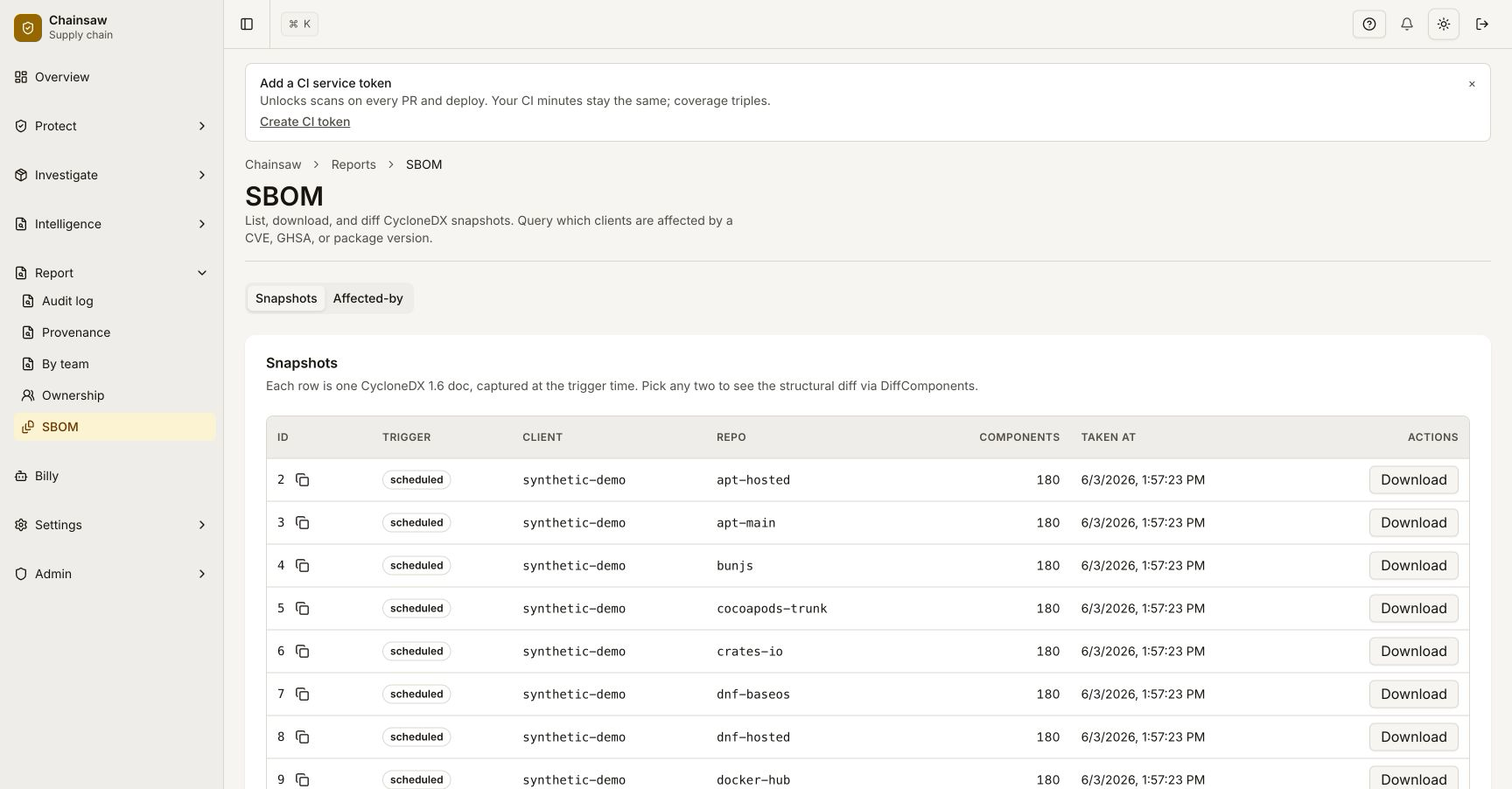
Each row shows:
| Column | Meaning |
|---|---|
| Timestamp | When the snapshot was captured |
| Components | Total component count (matches the CycloneDX components[].length) |
| Trigger | scheduled (the periodic loop), quarantine (auto-snapshot when a Quarantine verdict fires), or manual (operator-initiated) |
| Download | One-click CycloneDX JSON download |
| Diff | Compare against any other snapshot |
Tune the snapshot interval
The default cadence is 24 hours. To change it, set the env var on the control plane:
CHAINSAW_SBOM_SNAPSHOT_INTERVAL=6h   # six-hour cadence
CHAINSAW_SBOM_SNAPSHOT_INTERVAL=0    # disable scheduled snapshots; only auto-on-Quarantine remains
Auto-snapshot on Quarantine verdicts
When a policy fires Action: Quarantine, Chainsaw also captures an unscheduled snapshot tagged quarantine. This gives you a frozen incident-timeline artifact at the moment of the verdict — useful for post-mortems where the live BOM has already drifted.
Step 8: Diff Two Snapshots
To answer “what changed in our supply chain since last week?”, click Diff on any snapshot, then pick a second snapshot to compare against. The diff view shows three sections:
- Added — components present in the newer snapshot only
- Removed — components present in the older snapshot only
- Changed — components present in both but at a different version, trust score, or vulnerability ratings
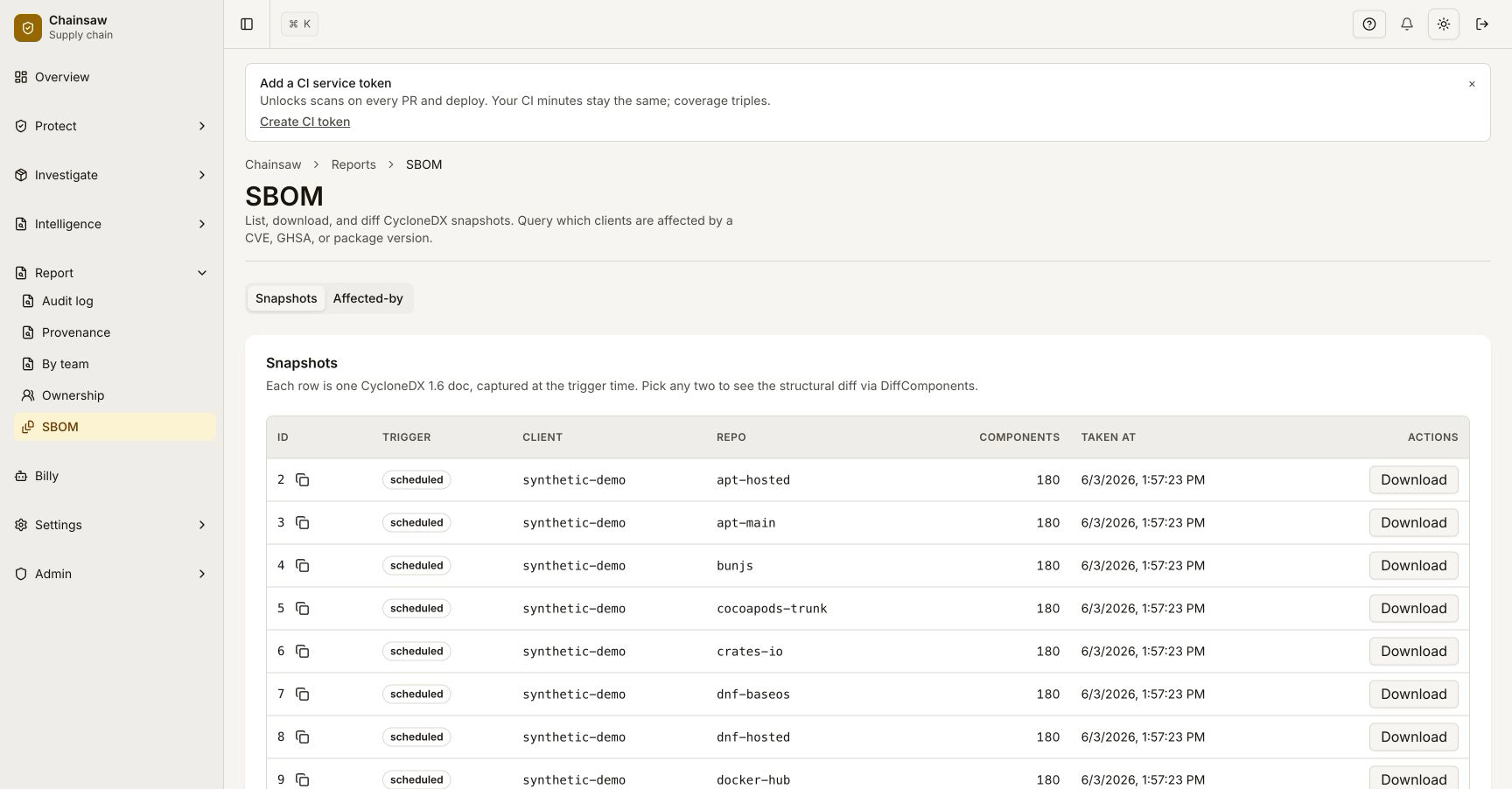
The diff is also available as JSON via GET /api/sbom/snapshots/{id}/diff?against={otherID} for ingestion into compliance pipelines.
Step 9: “Affected By” Lookups
When a new CVE drops, the obvious question is “are we exposed?”. Two ways to answer it today:
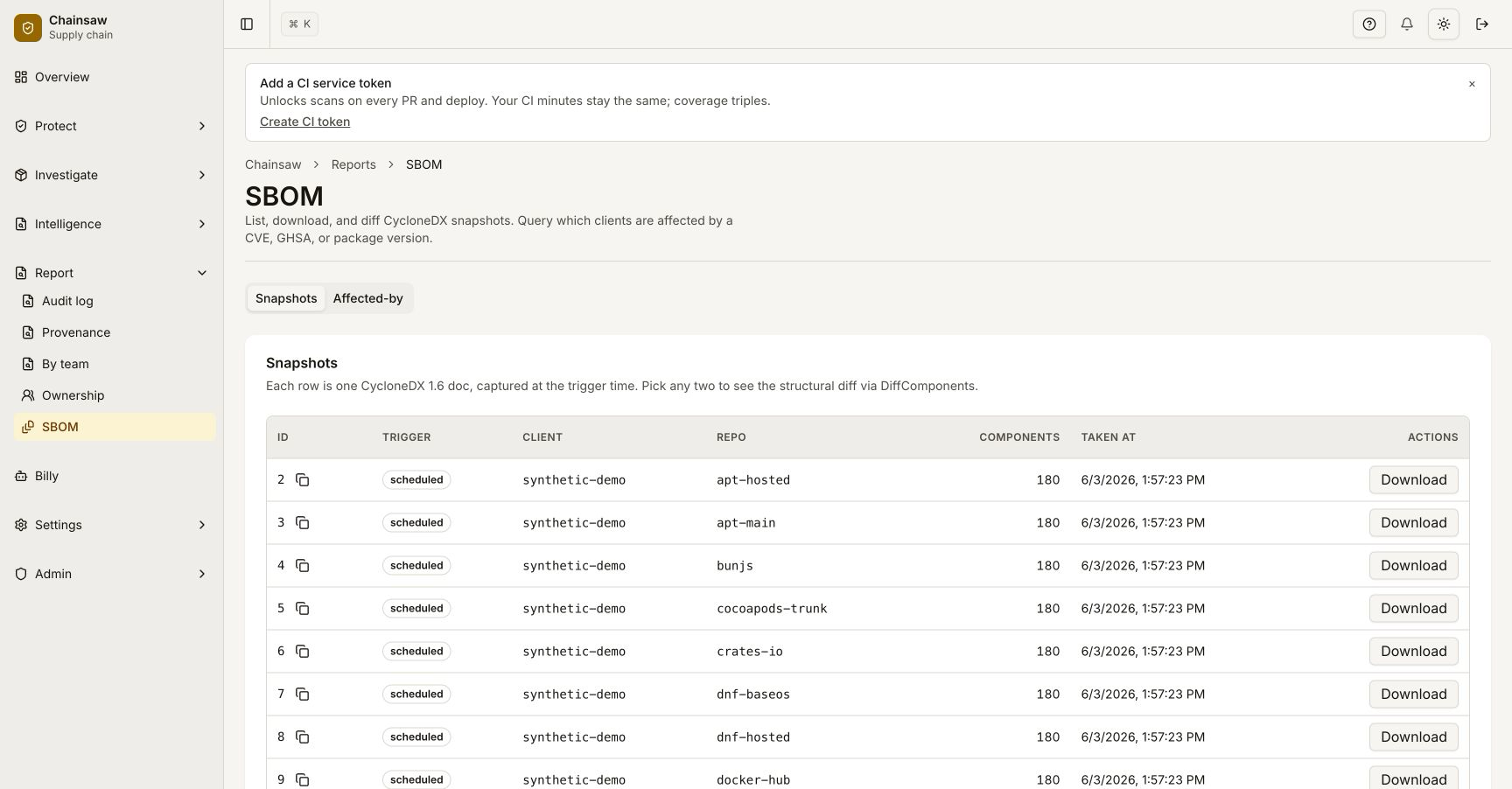
1. Dashboard (fastest). Go to Investigate → Inventory → “Are we affected by a CVE?”, paste the CVE ID, and the table fills with every client × repo × package@version match across recent install events. The same lookup is also surfaced under Reports → SBOM → Affected-by.
2. MCP tool (programmatic / AI agents). Call chainsaw_query_affected_packages over the MCP transport — supports CVE, GHSA, and malware-ID lookups, returns the same client × repo × package×version rows as the dashboard. See How to Connect AI Agents via the MCP Server.
Both paths cross-reference your install events against the current vulnerability feed (so a CVE disclosed after the install still surfaces) and join through package_metadata so the answer is scoped to packages your fleet actually pulled. A snapshot-scoped HTTP endpoint that walks dependsOn[] for transitive resolution is on the roadmap; until it lands, the dashboard / MCP path covers the org-wide question that operators ask in practice.
Step 10: Integrate with Compliance Tools
CycloneDX SBOMs are supported by many compliance and security tools:
| Tool | Integration |
|---|---|
| Dependency-Track | Import CycloneDX SBOM for continuous monitoring |
| Grype | Scan SBOM for additional vulnerability analysis |
| OWASP DT | Full lifecycle SBOM management |
| Compliance portals | Upload for regulatory attestation |
PURL Support
Chainsaw generates Package URLs (PURLs) for all supported ecosystems:
| Ecosystem | PURL Format |
|---|---|
| npm | pkg:npm/lodash@4.17.21 |
| PyPI | pkg:pypi/requests@2.31.0 |
| Maven | pkg:maven/org.apache/commons-lang3@3.12.0 |
| NuGet | pkg:nuget/Newtonsoft.Json@13.0.3 |
| Cargo | pkg:cargo/serde@1.0.188 |
| Go | pkg:golang/github.com/gin-gonic/gin@1.9.1 |
| Docker | pkg:docker/library/nginx@latest |
| Composer | pkg:composer/laravel/framework@10.0.0 |
| RubyGems | pkg:gem/rails@7.0.8 |
| APT | pkg:deb/debian/curl@7.88.1 |
| Yum | pkg:rpm/centos/httpd@2.4.57 |
| Hugging Face | pkg:huggingface/meta-llama/Llama-2-7b |
Next Steps
- How to Export and Analyze Your BOM as CSV — Export for spreadsheet analysis
- How to Use Audit Logs to Track Consumption — Complement SBOM with audit trails
- How to Enforce License Compliance — Use license data from the SBOM