How to Use Country and IP-Based Access Policies
Configure GeoIP-based policies to restrict package access by country, and create IP allowlists/blocklists for network-level access control.
Overview
Some organizations need to restrict package access based on geographic location or source IP address — for compliance with export controls, data residency requirements, or to limit access to known office networks. Chainsaw supports both country-based (GeoIP) and IP-based policy conditions.
Prerequisites
- Admin or Manager role in Chainsaw
- GeoIP MMDB database installed (MaxMind) for country-based policies
- Knowledge of your organization’s network ranges for IP-based policies
Step 1: Understand GeoIP Detection
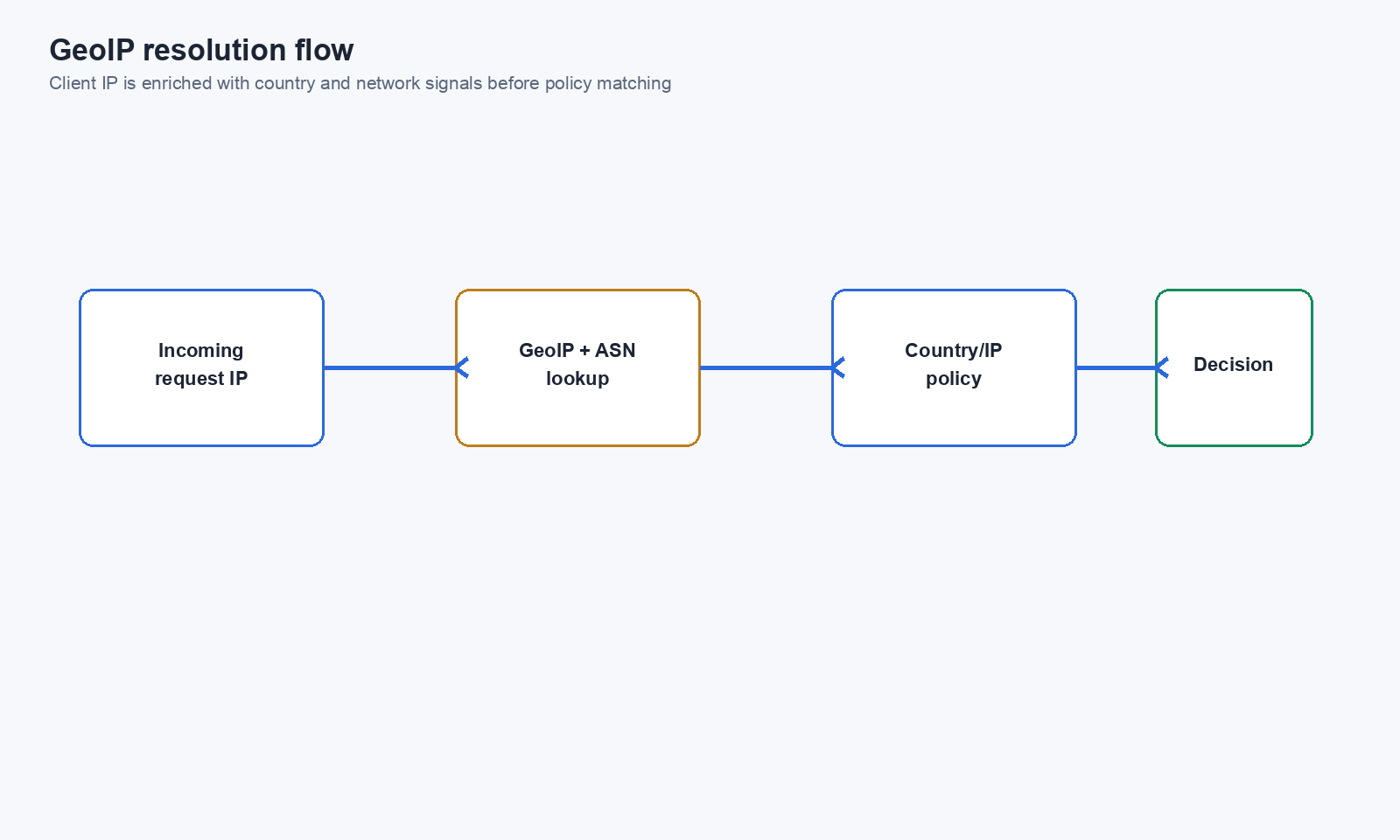
Chainsaw uses a MaxMind GeoIP MMDB database to resolve client IP addresses to country codes. When a package request arrives, Chainsaw:
- Extracts the client IP address
- Looks it up in the MMDB database
- Resolves to a country code (ISO 3166-1 alpha-2, e.g.,
US,DE,JP) - Makes the country available as a policy condition
Step 2: Create a Country-Based Policy
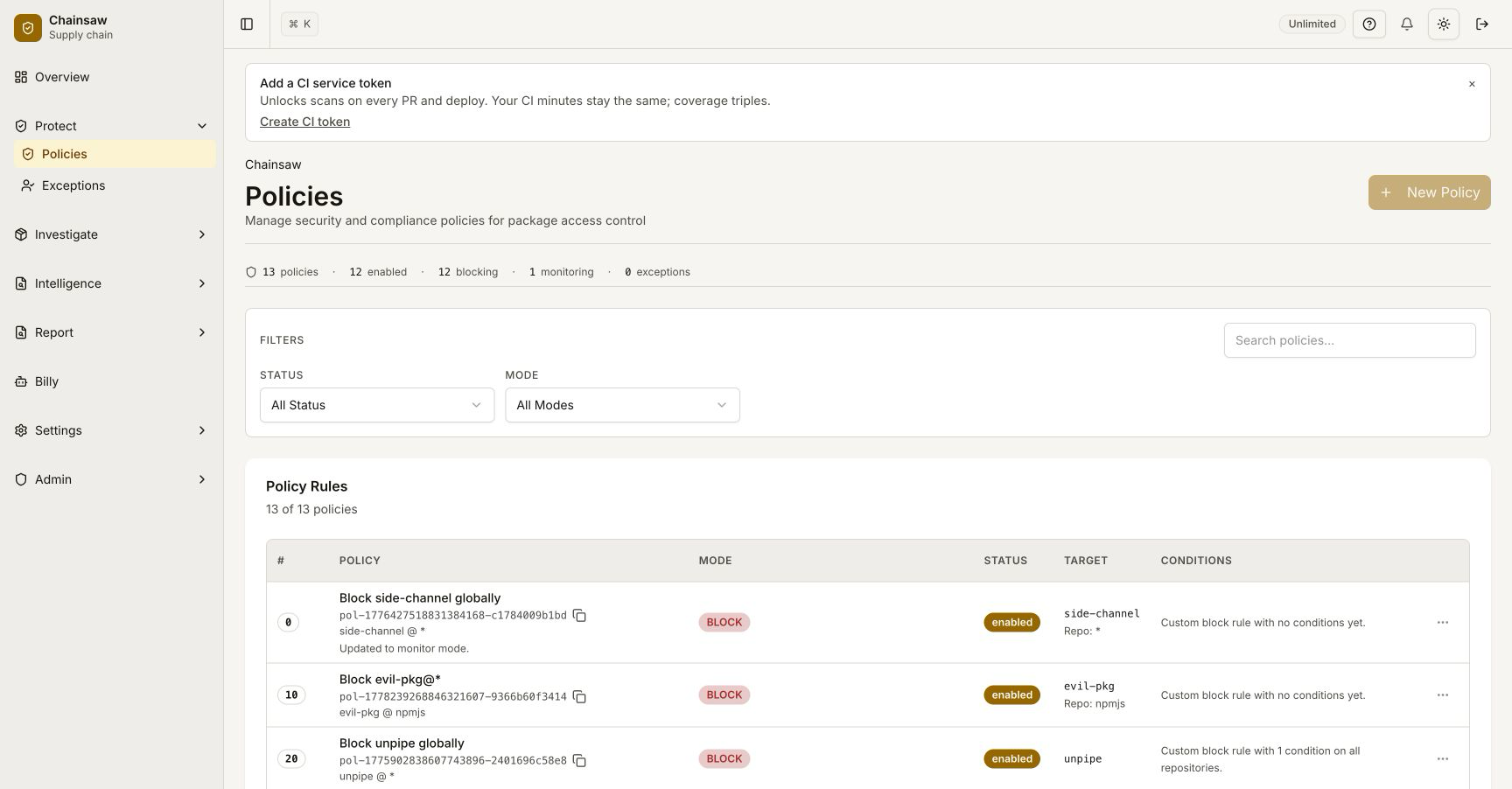
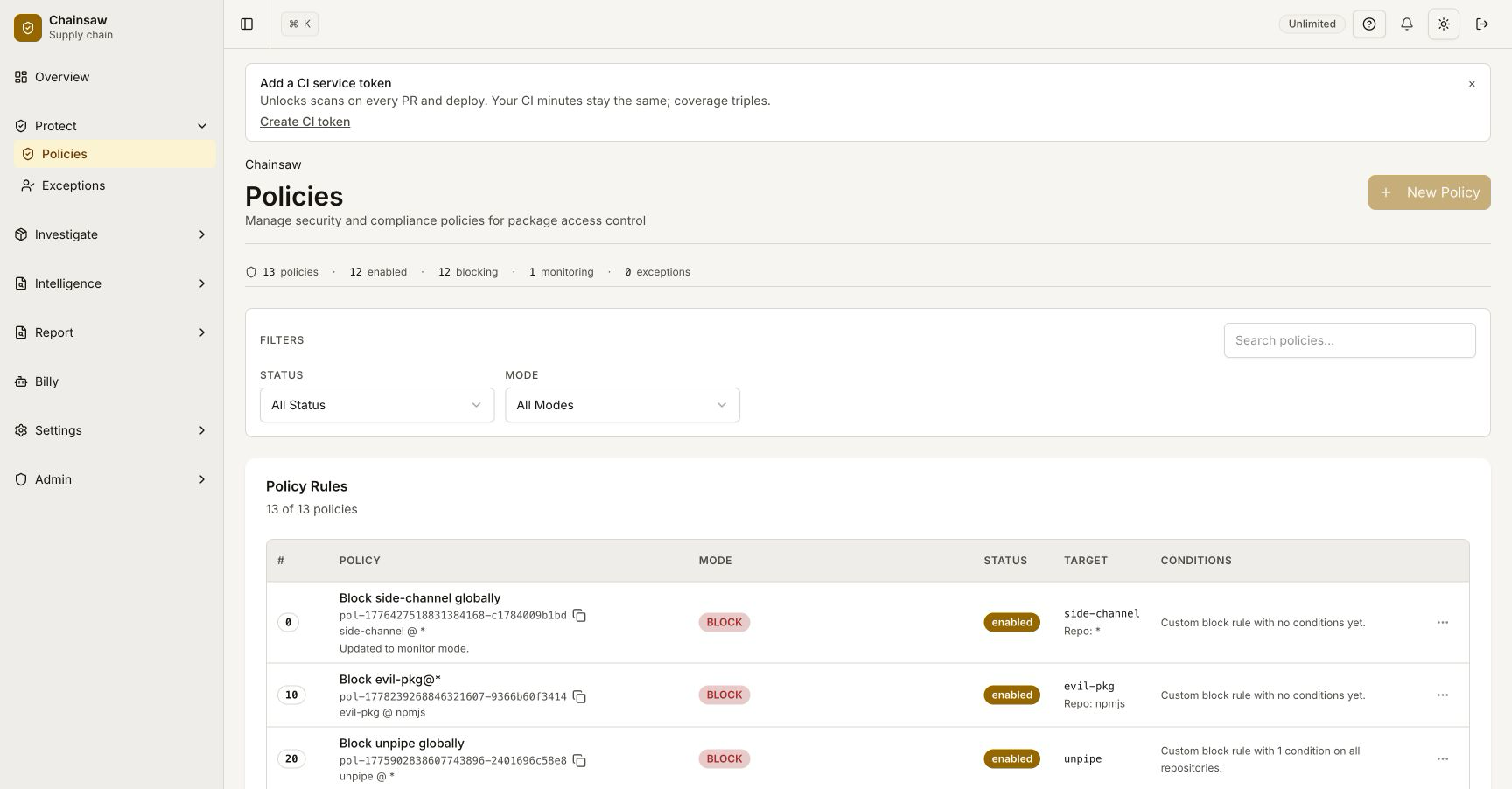
Navigate to Policies and click Create Policy.
Restrict Access to Approved Countries
- Name:
Block Non-Approved Countries - Action: Block
- Condition: Country → not in list
- Country List:
US,CA,GB,DE(your approved countries) - Scope: All repositories
Allow Specific Countries Only
Alternatively, create an Allow policy for approved countries and a catch-all Block:
Policy 1 (High precedence): Allow — Country in [US, CA, GB, DE]
Policy 2 (Low precedence):  Block — All requests (catch-all)
Step 3: Create IP-Based Policies
Allowlist Corporate Networks
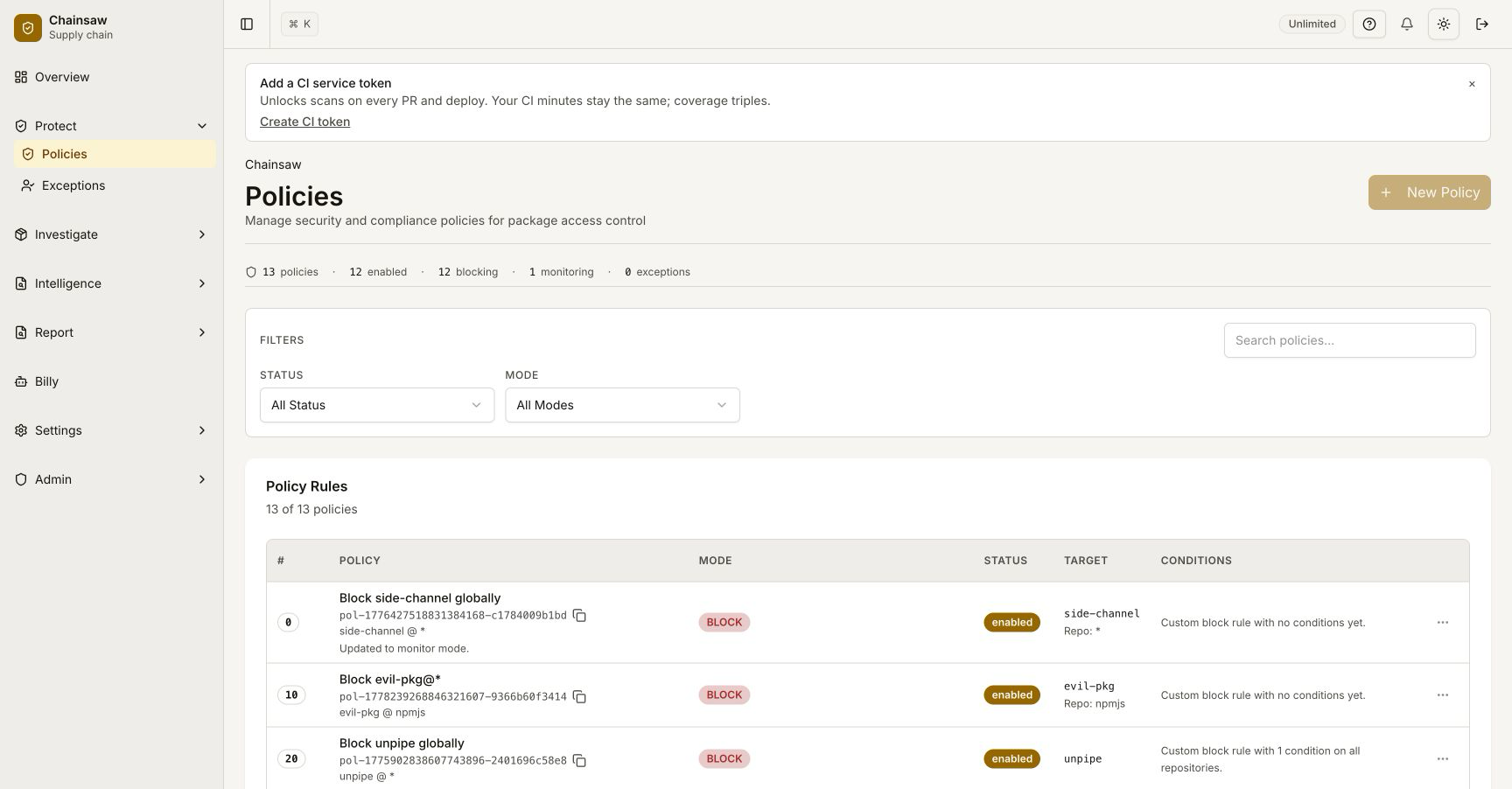
Restrict access to known office or VPN IP ranges:
- Name:
Allow Corporate Network Only - Action: Allow
- Condition: IP → in range
- IP Ranges:
10.0.0.0/8,172.16.0.0/12,203.0.113.0/24
Blocklist Known Bad IPs
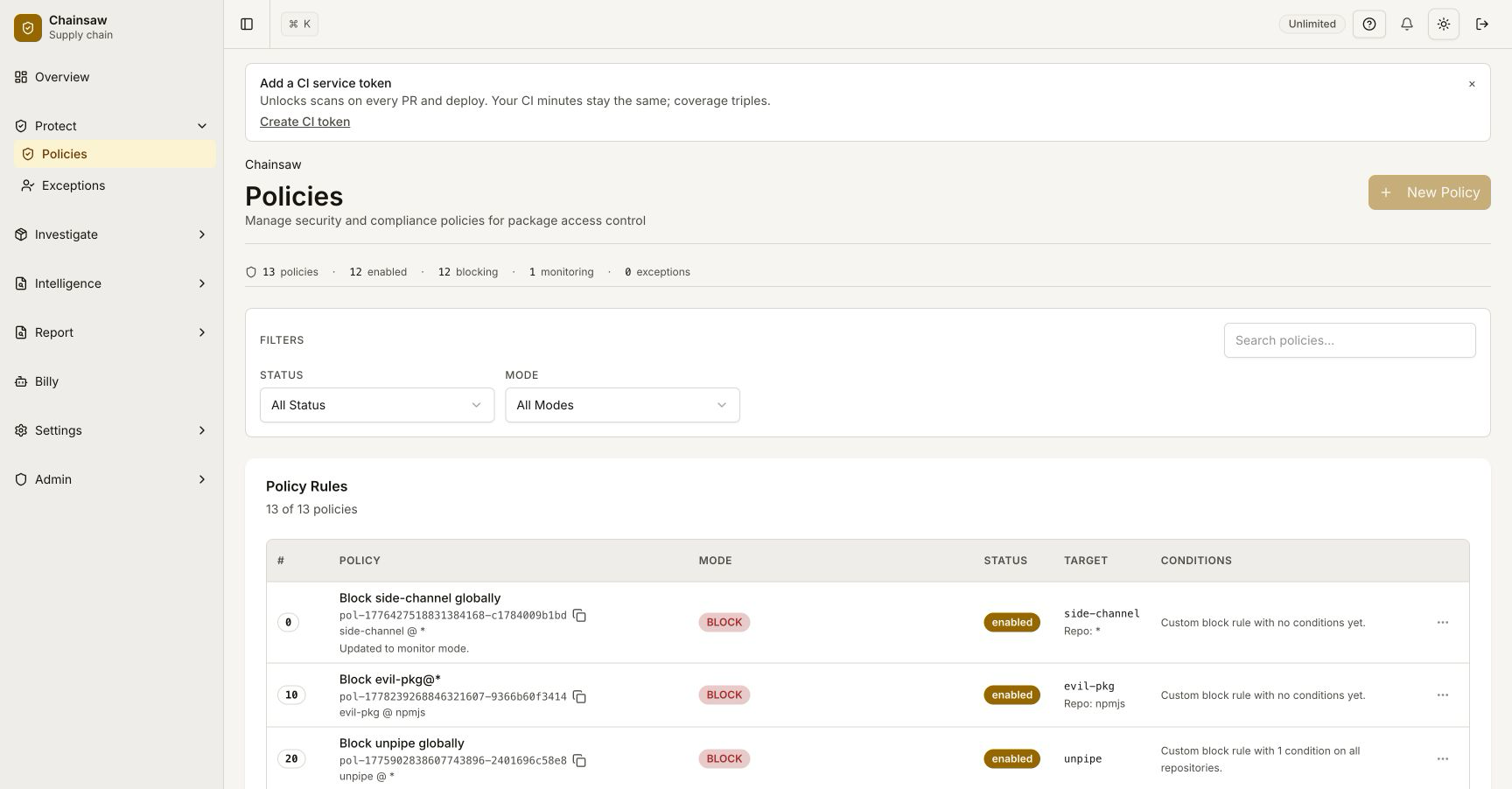
Block requests from specific IP addresses:
- Name:
Block Suspicious IPs - Action: Block
- Condition: IP → in list
- IP List: Specific IPs you’ve identified as suspicious
Step 4: Combine Country and IP Policies
Layer policies for defense in depth:
| Precedence | Policy | Purpose |
|---|---|---|
| 100 | Allow — Corporate VPN IPs | Always allow from known infrastructure |
| 90 | Block — Non-approved countries | Geographic restriction |
| 80 | Block — Suspicious IP ranges | Threat intelligence |
| 10 | Allow — Default | Allow remaining approved traffic |
Step 5: Compliance Use Cases
Export Control Compliance
Block access from countries subject to export restrictions:
Block — Country in [embargoed country list]
Scope: All repositories
Precedence: Very high (above exceptions)
Data Residency
Ensure packages are only accessed from approved jurisdictions:
Allow — Country in [approved jurisdictions]
Block — All others (catch-all)
PCI-DSS / SOC2
Restrict production package access to controlled network segments:
Allow — IP in [production network ranges]
Block — All others for service-token client types
Step 6: Monitor Geo/IP Violations
Navigate to the Overview dashboard to see violations triggered by geographic or IP restrictions.
Check the Traffic page for details on blocked requests:
- Source IP address
- Resolved country code
- Policy that triggered the block
Step 7: Handle Remote Workers
Remote employees may trigger country or IP policies. Solutions:
| Scenario | Solution |
|---|---|
| Employee traveling abroad | VPN with approved egress IP |
| Remote worker in non-approved country | VPN or IP-based exception |
| Contractor on external network | Dedicated credential with IP exception |
Create a temporary exception policy:
- Name:
Exception: Remote Worker — Jane Doe (2026-Q2) - Action: Allow
- Conditions: Client ID =
jane-doe-credAND Country =JP - Expiry: End of quarter
Next Steps
- How to Manage Policy Precedence and Exception Workflows — Position geo/IP policies in your stack
- How to Use Audit Logs to Track Consumption — Audit trail for compliance evidence
- How to Integrate Chainsaw with CI/CD Pipelines — Ensure CI/CD IPs are allowlisted