How to Use Audit Logs to Track Package Consumption and Policy Changes
Navigate the audit page, filter events by actor/action/date, and build an audit trail for compliance reviews.
Overview
Chainsaw records every significant event as an audit log entry — package downloads, policy changes, credential management, configuration updates, and more. These logs provide the evidence trail needed for compliance audits, incident investigations, and understanding who did what and when.
Prerequisites
- Manager role or above in Chainsaw
- Activity flowing through the proxy (package installs, admin actions)
Step 1: Navigate to the Audit Page
Click Audit in the sidebar. The audit page shows a chronological feed of all events.
Step 2: Understand Event Types
Chainsaw records several categories of events:
| Category | Examples |
|---|---|
| Package Activity | Package download, metadata request, blocked request |
| Policy Changes | Policy created, updated, deleted, enabled/disabled |
| Credential Management | Client created, secret reset, credential disabled |
| User Management | User invited, role changed, password reset |
| Configuration | Settings changed, repository enabled/disabled |
| Exceptions | Exception created, expired, removed |
Each event record includes:
| Field | Description |
|---|---|
| Timestamp | When the event occurred |
| Actor | Who performed the action (user email or client ID) |
| Action | What was done |
| Resource | What was affected |
| Details | Additional context (policy conditions, package version, etc.) |
| Outcome | Success, failure, blocked |
Step 3: Filter Events
Use the filter controls to narrow down the audit log:
By Actor
Find all actions by a specific user or client:
By Action Type
Focus on specific event types (e.g., only policy changes):
By Date Range
Set a specific time window for your audit review:
Step 4: Build a Compliance Report
For periodic compliance reviews, combine audit logs with BOM exports:
- Set the date range to your compliance period (e.g., Q1 2026)
- Filter by action type to isolate the events you need:
- Package downloads for consumption tracking
- Policy changes for change management evidence
- Exception activity for risk acceptance documentation
- Export the data for your compliance documentation
Step 5: Investigate Incidents
When investigating a security incident, use audit logs to trace the timeline:
- Identify the package — Use the BOM to find the affected package
- Search audit logs — Filter by the package name to see when it was first installed
- Trace the client — Identify which credential downloaded the package
- Check policy history — See if any policies were changed that allowed the package through
Step 6: Ingest Custom Audit Events
Chainsaw accepts custom audit events via the API for integration with external systems:
curl -X POST "https://chain305.com/chainproxy/api/v1/audit/events" \
  -H "Authorization: Bearer YOUR_TOKEN" \
  -H "Content-Type: application/json" \
  -d '{
    "action": "external_scan_complete",
    "actor": "security-scanner",
    "resource": "npm/lodash@4.17.21",
    "details": "Third-party scan completed, no issues found",
    "outcome": "success"
  }'
This allows you to correlate Chainsaw events with external security tool results.
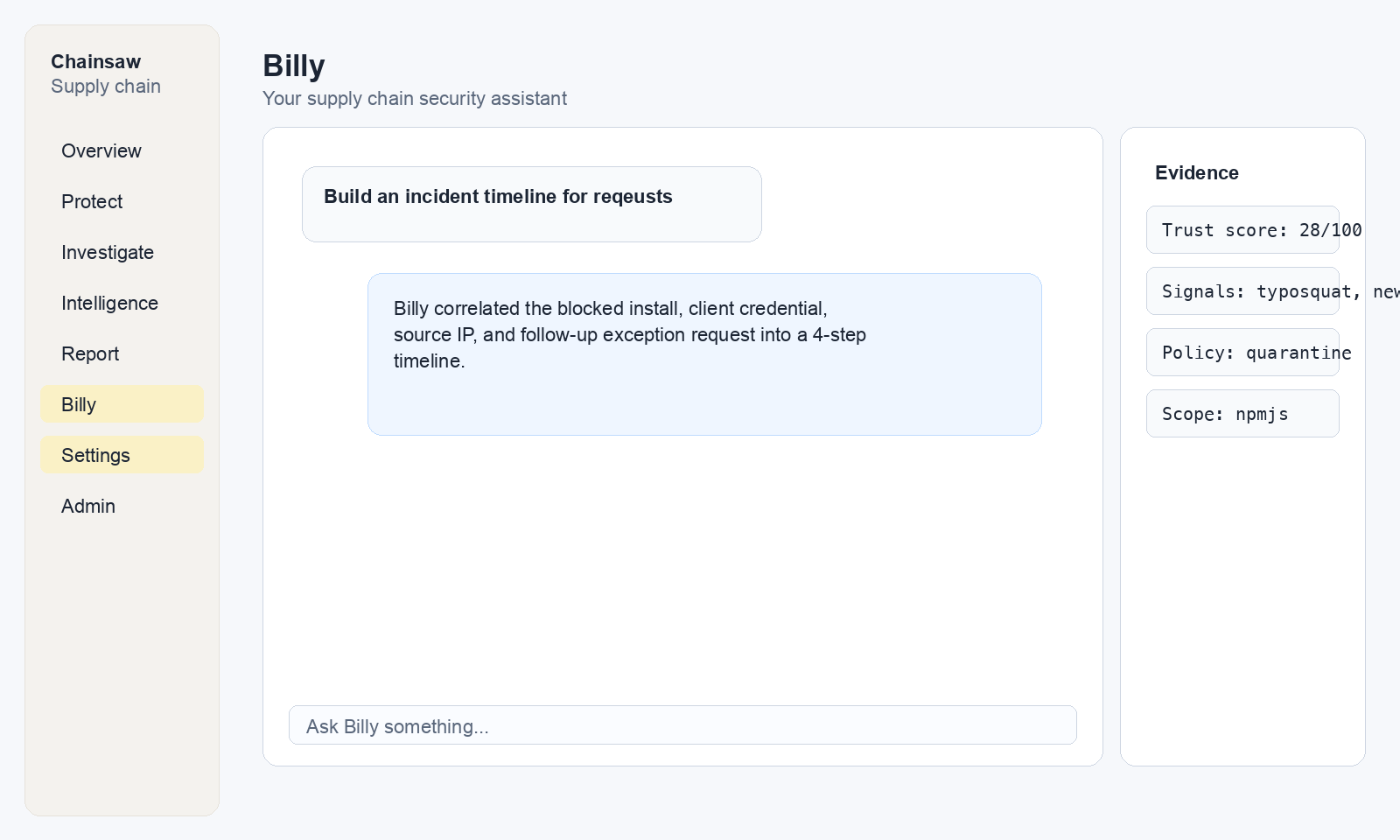
Step 7: Use Billy for Audit Analysis
Ask Billy to help analyze audit patterns:
"What policy changes were made in the last 7 days?"
"Which user has created the most exceptions this month?"
"Show me all blocked events for the npm repository yesterday"
Next Steps
- How to Export Your SBOM in CycloneDX Format — Complement audit trails with SBOM exports
- How to Monitor Violations and Respond to Blocked Packages — Focus on policy violations
- How to Use the Dashboard to Track Supply Chain Health KPIs — High-level supply chain metrics