How to Create and Manage Client Credentials for Your Team
Create end-user, service-token, and AI-agent credentials, set expiry dates, authorize specific repositories, and rotate secrets.
Overview
Client credentials are how Chainsaw identifies who is requesting packages. Each credential maps to a Client ID and Secret pair, and can be scoped to specific repositories, given an expiry date, and assigned a client type. This tutorial covers the full lifecycle of credential management.
Prerequisites
- A running Chainsaw instance with admin or owner access
- At least one configured repository
Step 1: Navigate to the Access Page
Click Access in the sidebar navigation. This page shows all existing client credentials for your organization.
Step 2: Create a New Credential
Click the Create Credential button.
Choose a Client Type
Chainsaw supports three client types:
| Type | Use Case |
|---|---|
| End User | Individual developers on their local machines |
| Service Token | CI/CD pipelines, build servers, automated systems |
| AI Agent | AI coding assistants and automated dependency managers |
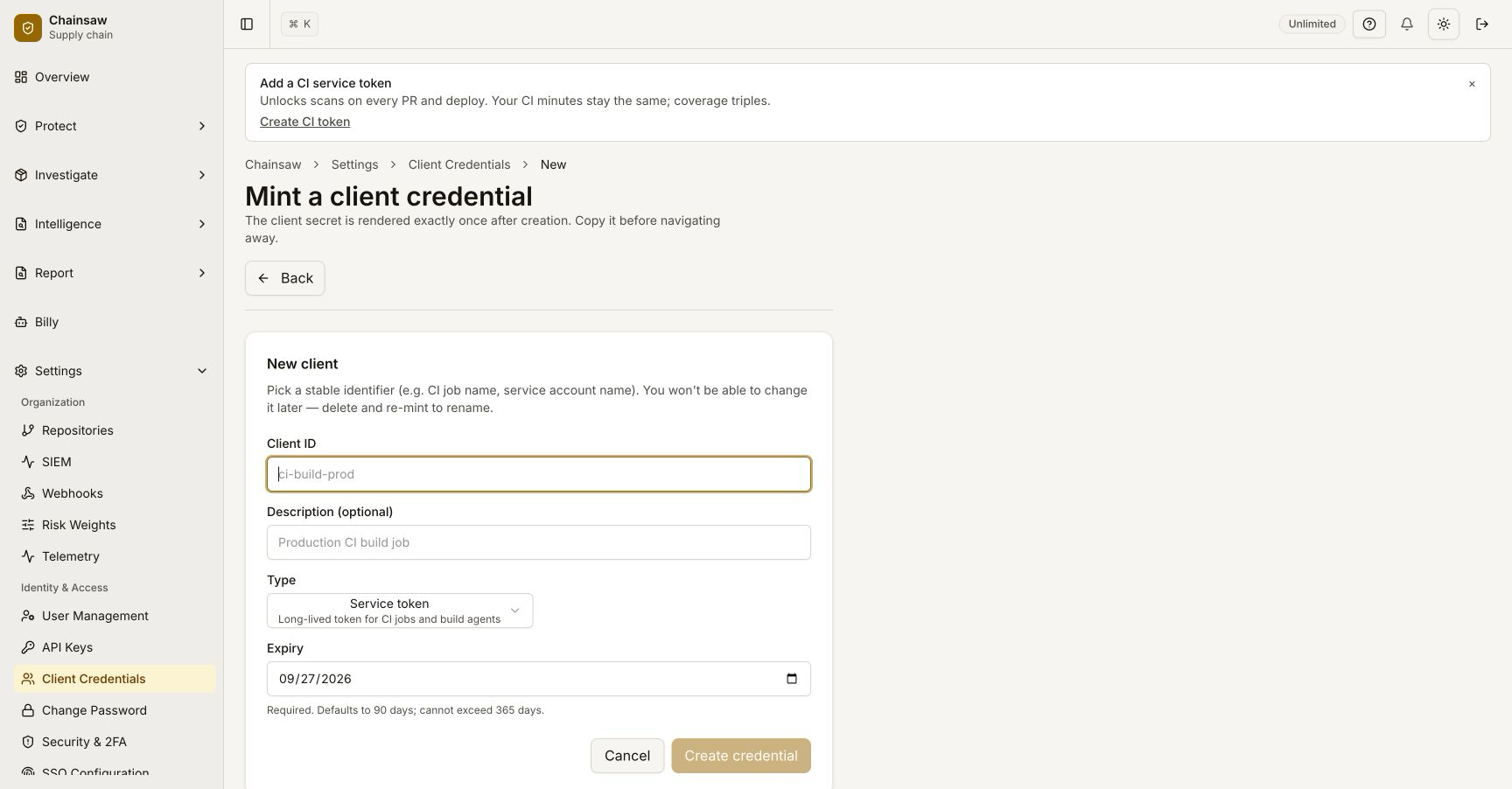
Configure the Credential
- Name — A descriptive label (e.g.,
frontend-team,github-actions-prod) - Client Type — Select from the dropdown
- Authorized Repositories — Choose which repositories this credential can access
- Expiry Date (optional) — Set an expiration for time-limited access
Step 3: Copy the Credentials
After creation, Chainsaw displays the Client ID and Client Secret. Copy both values immediately.
Step 4: Scope Repository Access
Each credential can be limited to specific repositories. This follows the principle of least privilege — a frontend team’s credential only needs access to the npm registry, not Maven or Docker.
- Click on a credential in the list
- Navigate to the Authorized Repositories section
- Select the repositories this credential should access
Step 5: Enable or Disable Credentials
You can temporarily disable a credential without deleting it. This is useful during incident response or when offboarding a team.
- Find the credential in the list
- Toggle the Enabled switch
Step 6: Reset a Client Secret
If a secret is compromised or lost:
- Click on the credential
- Click Reset Secret
- Copy the new secret and distribute it to the affected team
Step 7: Set Expiry Dates
For temporary access (contractors, feature branches, time-limited projects):
- Edit the credential
- Set an Expiry Date
- The credential automatically stops working after this date
Best Practices
- One credential per team or pipeline — Don’t share credentials across unrelated systems
- Use service tokens for CI/CD — These can be rotated independently of developer credentials
- Set expiry dates for contractors — Avoid orphaned long-lived credentials
- Scope to minimum repositories — Frontend teams don’t need Docker Hub access
- Rotate secrets periodically — Reset secrets on a regular schedule (e.g., quarterly)
Viewing Credential Activity
To see what a specific credential has been downloading, navigate to the Traffic page and filter by Client ID.
Next Steps
- How to Configure Your Package Manager to Use Chainsaw — Use your new credentials with your package manager
- How to Invite Team Members and Assign Roles — Manage who can create and administer credentials